Gantt Planner
Ganttův diagram projektů a zdrojů pro Microsoft Dynamics 365 Business Central
English · Čeština · Deutsch · Español · Version history
English
English · Čeština · Deutsch · Español · Version history
Gantt Planner shows all projects in Business Central and the people planned on them on a single timeline. You move tasks with the mouse, see the daily load of each resource against its capacity, and overloaded days are highlighted immediately. In one step you can hand a task over to a resource with free capacity.
The app works directly with standard Business Central data – projects, project tasks, project planning lines and resources. Nothing is converted or copied.
How the plan is built
- Task bar – all budget planning lines of type Resource for one resource on one project task. The bar starts at the first and ends at the last Planning Date of these lines. Hours are calculated from the quantity in the resource's base unit of measure (usually hour).
- Project bar – a thin bar above the tasks, from the earliest to the latest task.
- Resource load – the sum of hours of all budget lines of the resource on a given day across all projects that are not completed, divided by the daily capacity.
- Overload – load above the overload threshold (default 100%) or work planned on a day without capacity (weekend, public holiday).
Setup wizard
When you open the plan for the first time, a short three-step wizard starts. Each step can be skipped with Skip and use defaults – the app also works without any setup.
- Capacity Source – Resource capacity in Business Central (recommended; a resource without capacity uses the fixed number of hours) or Fixed hours per day.
- Working calendar – a base calendar with weekends and public holidays. The calendar from Company Information is filled in. Without a calendar, Saturday and Sunday are non-working.
- Displayed projects – open, planned and quotes, completed.
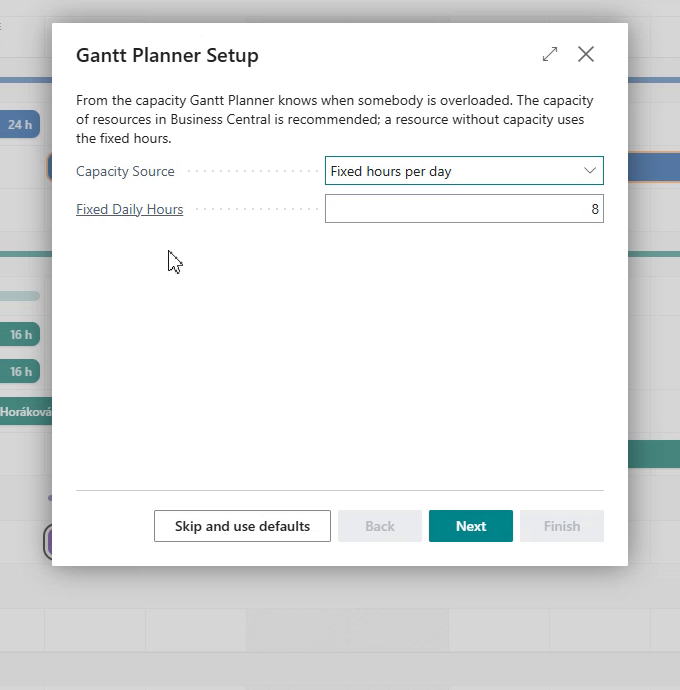
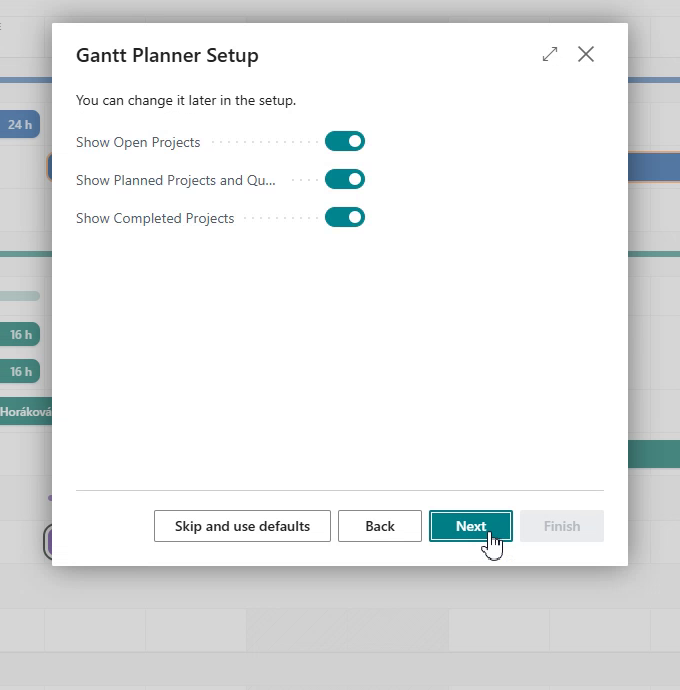
You can run the wizard again from Gantt Planner Setup > Setup Wizard.
Project and resource plan
Open the plan by searching for the page Gantt - Project and Resource Plan (typing Gantt is enough).

Navigating the plan
- Previous / Today / Next – moves the timeline.
- 2 Weeks / Month / Quarter – time scale.
- Hovering over a bar – shows task details (project, resource, period, hours, overload).
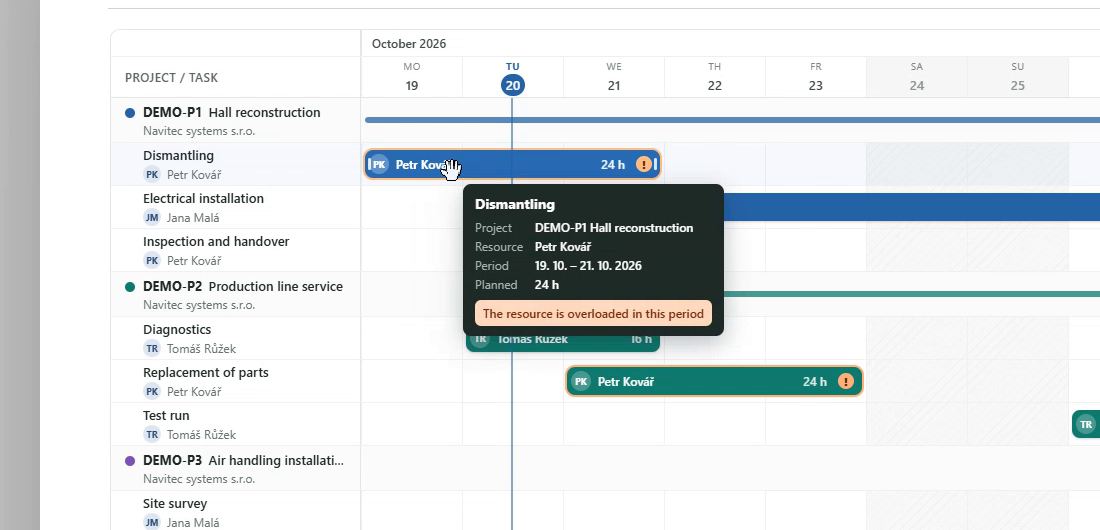
Task card
- Clicking a bar – opens the task card with the actions Planning lines, Hand over and Project card.
- Double-clicking a bar or Planning lines – opens the project planning lines behind the bar.

Moving, extending and shortening
- Dragging a bar – after confirmation, shifts all planning lines of the task for the resource by the same number of days. Lines that have already been posted or invoiced are not changed.

- Dragging the start or end of a bar – after confirmation, extends or shortens the task. The open planning lines are rescheduled: one line for each working day of the new period with the same number of hours per day as before. Posted and invoiced lines are not changed.
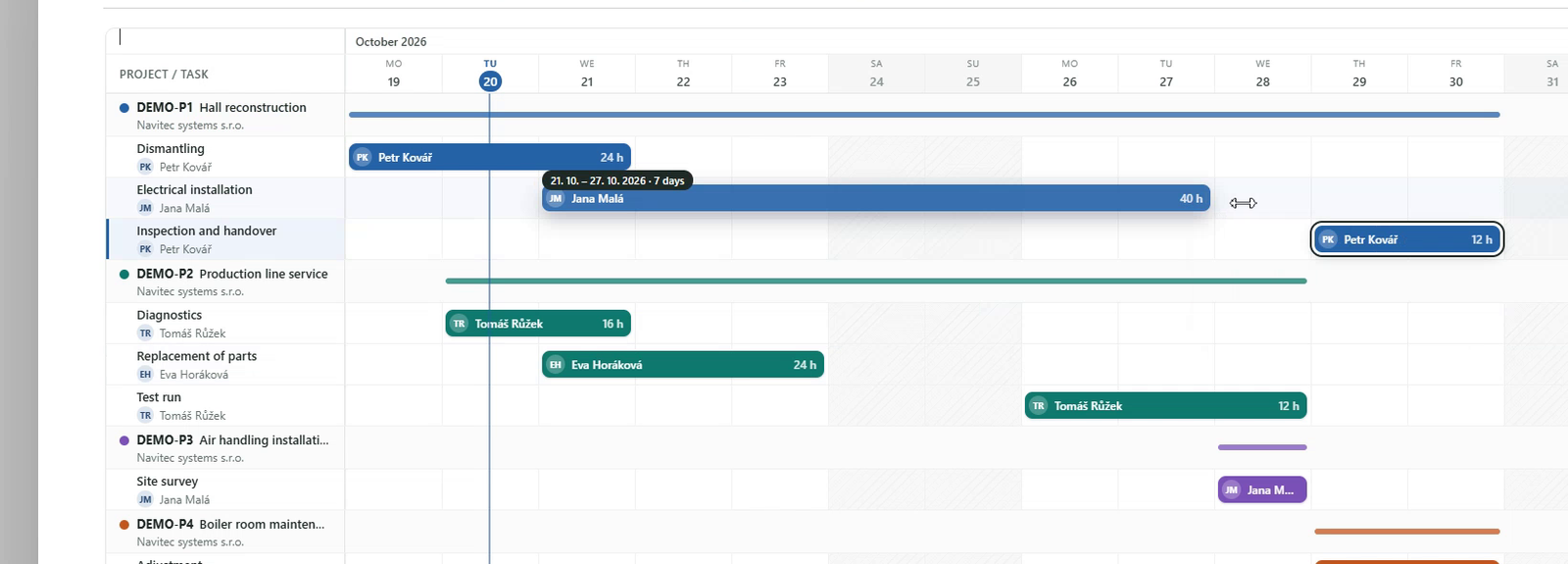
- Working days – with Skip Non-Working Days When Moving (default on) the work moves by working days of the calendar: what was planned on Friday and is moved by one day lands on Monday, not on Saturday. Work on a non-working day can still be planned on purpose – double-click the day or change the date in the planning lines.
- Preview while dragging – while you drag, the following tasks that would have to move are shown right away as dashed bars with the number of days, and the label at the pointer says what else moves.
Overload
- Clicking an overloaded day in the Resource Load section (e.g. 200%) – highlights in red the resource's tasks that cause the overload on that day and dims the other bars. Click again, click elsewhere or press Esc to clear the highlighting.
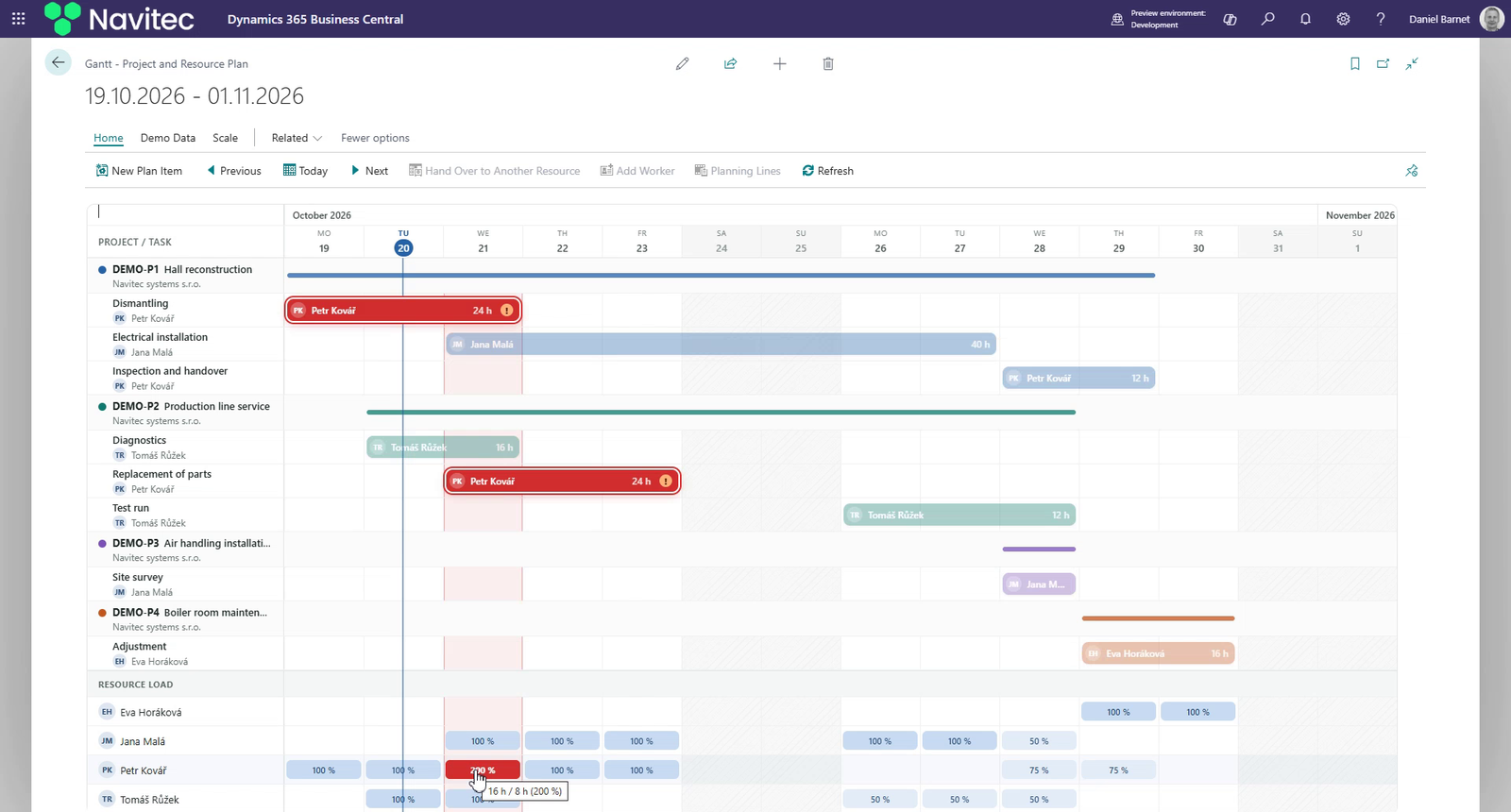
Handing over to another resource
- Hand Over to Another Resource – shows the resources with free capacity in the task period (resources from the same resource group first, sorted by free hours after the handover). After you select one and confirm, the task is handed over to the selected resource.
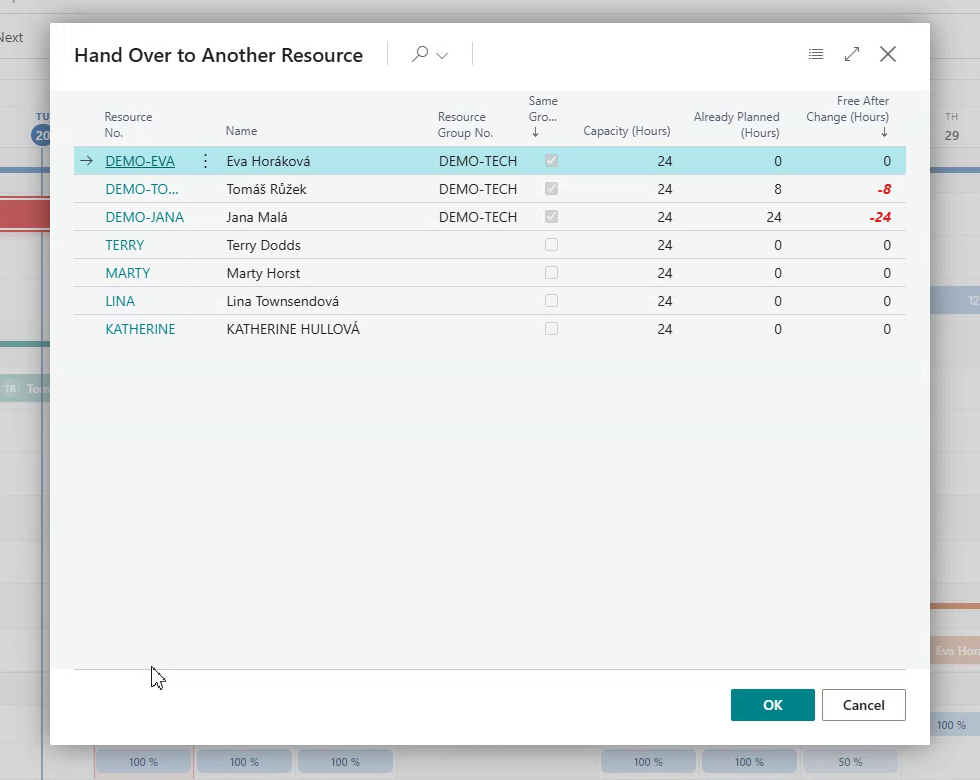
Another worker on the task
- Add Worker – plans another resource on the task on the same days and with the same hours (resources with free capacity at the top).

A task with several workers is shown as a group: a task row with the whole period, the number of workers and hours, and below it an indented row for each worker. Drag the summary bar of the task (the thin bar in the task row) to move the whole task with all people at once; every person can still be moved separately.
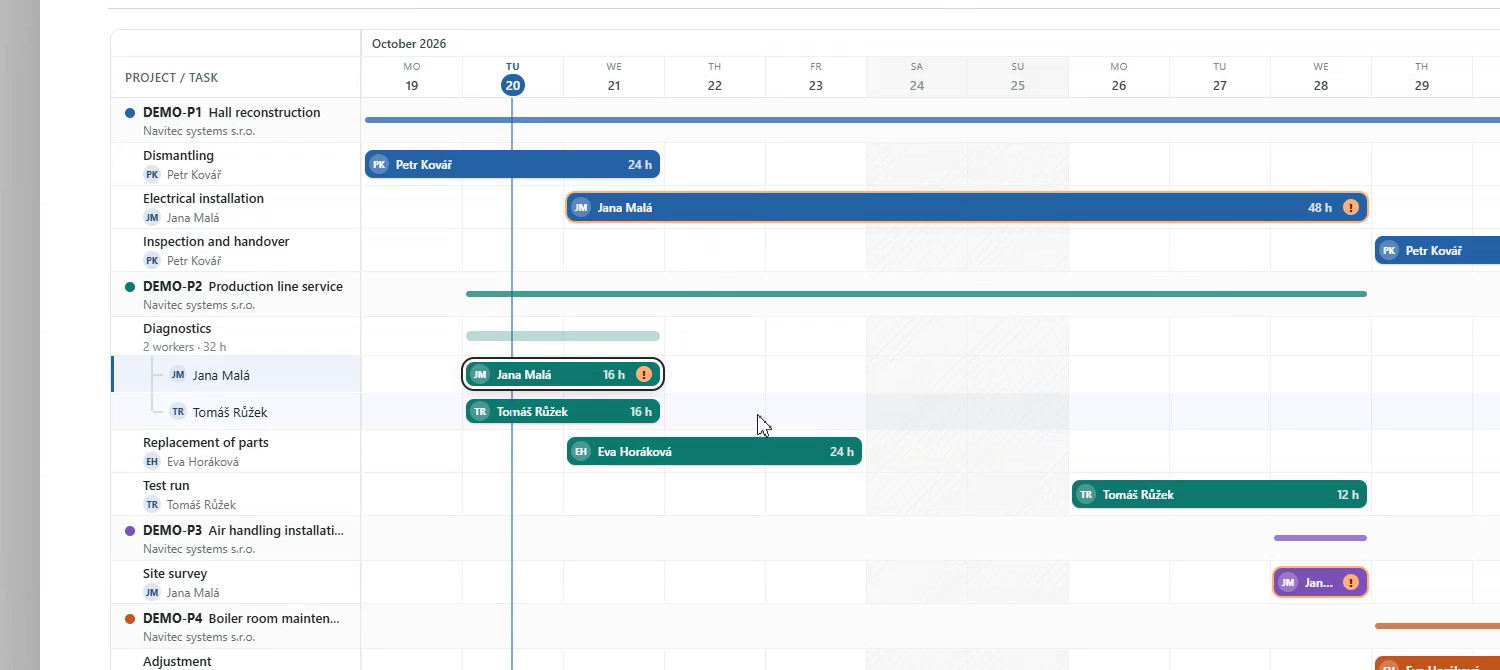
New plan item
- New Plan Item (or double-clicking an empty spot in the chart) – opens the New Plan Item dialog: project, project task (an existing one, or a new number with a description – the task is created), resource, start and end date, and hours per day. One budget planning line is created for each working day. When you double-click, the project, task and resource are filled in from the row, and the date from the day under the cursor.

Unplanned tasks and projects
Project tasks that have no people planned yet are shown collapsed, so the plan stays clear:
- Under the planned tasks of a project there is one grey row „▸ 2 unplanned tasks“. Click it to show the tasks, click again to hide them.
- Projects without any planned people are in one collapsed section UNPLANNED PROJECTS above the resource load. Click it to show the projects, click a project to show its tasks.
- Double-click a day in the row of an unplanned task to open New Plan Item with the project, the task and the date filled in – just choose the person and the period.
- The plan remembers what you expanded while it is open. In Gantt Planner Setup the field Show Unplanned Tasks switches this off.
Task dependencies
A dependency says that one project task cannot start before another one. Dependencies are kept per project and are shown in the plan as arrows from the previous task to the following one. A broken dependency (the following task starts too early) is shown as a red dashed arrow.
-
Types – Finish-to-Start (the following task starts after the previous one ends; the usual case) and Start-to-Start (the following task starts when the previous one starts). Lag (Days) adds days between the tasks (for example drying time).
-
New dependency in the chart – click a task, choose Link a following task on the task card and click the following task (Esc = cancel). The dependency is created as Finish-to-Start.
-
Task Dependencies action – the list of the dependencies of the selected project, where you can add, change and delete dependencies. The action Reschedule Following Tasks checks all dependencies of the project and moves the following tasks that start too early.
-
Moving following tasks – when you move a task or make it longer and a following task would start too early, the plan shows a preview first: the new position as a bar with an orange dashed border (the original bar stays as a faint shadow), the number of days on every task that moves, orange arrows to the new positions and a bar at the top, e.g. Electrical installation (Jana Malá) +1 day → also moves Inspection and handover +1 day, with Move all, Only
and Cancel. Move all moves the task and all following tasks through the whole chain; Only leaves the following tasks where they are (the dependency is then shown in red). -
Following tasks are only moved later, never earlier. A start that falls on a non-working day is moved to the next working day. Posted and invoiced planning lines are never changed.
-
A dependency cannot create a loop (a task cannot depend on itself, directly or through other tasks).
-
Show / Hide Dependencies hides the arrows; the dependencies stay in use. In Gantt Planner Setup the field Use Task Dependencies switches the whole function off (the dependencies are kept).
-
Warning about a broken dependency – the task that starts too early has a red frame and a red chain icon; the pointer tooltip says by how much, e.g. Starts 1 day earlier than the dependency on Diagnostics allows. On the task card, Move by dependency moves the task (and the tasks after it) to where the dependency allows – with the preview first.
-
Line above the plan – only when something needs attention: 1 broken dependency – Fix dependencies and 2 tasks with work on non-working days – Move to working days. Fix dependencies shows the preview of all moves (for more projects a list to confirm); Move to working days moves the open work planned on non-working days in the shown period to the next working day. The × hides the line until something changes.
Demo data
In a sandbox, the plan page has the actions Generate Demo Data and Delete Demo Data. In a production environment they are not shown and cannot be run. The demo data include task dependencies (one of them broken), a task with two people, unplanned tasks and projects without planned people.
Gantt Planner Setup
| Field | Description |
|---|---|
| Capacity Source | Resource capacity in Business Central or a fixed number of hours per day. |
| Fixed Daily Hours | Hours per working day for resources without capacity (default 8). |
| Base Calendar Code | Non-working days (weekends, public holidays). |
| Overload Threshold % | The load from which a resource is marked as overloaded (default 100). |
| Show Open Projects / Show Planned Projects and Quotes / Show Completed Projects | Which projects the plan shows. Completed projects are never included in the load. |
| Default Time Scale | The period shown when the plan opens. |
| Bar Color By | Project, customer or project status. |
| Use Task Dependencies | Switches task dependencies on or off (default on). |
| Show Unplanned Tasks | Shows tasks and projects without planned people, collapsed (default on). |
| Skip Non-Working Days When Moving | Moving a task shifts its work by working days, so it does not land on weekends or holidays (default on). |
| Your Access | Planner (with a license), administrator (setup only) or view only. Information only. |
License
Gantt Planner is purchased on Microsoft AppSource as a per-user subscription (plan Planner). You pay only for users who change the plan – everyone else can view it for free.
| User | What they can do |
|---|---|
| with an assigned Gantt Planner license | everything: move, extend and shorten tasks, hand them over, add workers and new plan items, setup, setup wizard, demo data |
| without a license | view the plan (move the period, time scale, task details, clicking an overload, planning lines and project card) – free of charge |
| customer administrator (Global Administrator, Dynamics 365 Administrator, Business Central Administrator) without a license | setup and setup wizard; can only view the plan. In a sandbox they can also plan (to try it out before buying). |
| partner (delegated admin, delegated helpdesk) | everything – for setup, demonstrations and support at the customer |
- The first month after purchase is free. If the customer cancels the subscription before the end of the month, nothing is charged.
- The subscription is monthly or annual; the price per user decreases with the number of licenses. Current prices are listed on AppSource.
- The license can be bought directly on AppSource (card payment) or from a Microsoft partner (CSP), who invoices it.
- A user without a license sees the notification View only above the plan; bars cannot be dragged and the actions that change the plan are disabled. On the Gantt Planner Setup page, the Your Access field shows each user whether they are a planner, an administrator (setup only) or have view-only access.
How to buy licenses
- On AppSource, search for Gantt Planner and choose Get it now, or order the licenses from your partner.
- Choose the number of licenses (the number of users who will change the plan) and the subscription term.
- Install the app in your Business Central environment (if it is not installed yet).
How to assign a license to a user
- Open the Microsoft 365 admin center (admin.microsoft.com) → Users → Active users.
- Select the user → Licenses and apps tab → select Gantt Planner → Save changes.
- In Business Central, open the Users page and run the Update users from Microsoft 365 action (or the user signs out and signs in again).
- Check that the user has the GANTT PLANNER NTC permission set assigned (it is part of D365 BUS FULL ACCESS) and the standard permissions for projects.
A license can be moved to another user at any time – remove it from one user in the admin center, assign it to another, and run Update users from Microsoft 365 in Business Central again.
Changing the number of licenses and cancellation
- Add or reduce licenses in the Microsoft 365 admin center → Billing → Your products → Gantt Planner, or through your partner.
- After the subscription is cancelled, the plan keeps working view only; the data (projects, tasks, planning lines) remains unchanged.
Permissions
- GANTT PLANNER NTC – planning and setup (part of D365 BUS FULL ACCESS). Planning is possible only with a Gantt Planner license (and as a partner – delegated admin).
- GANTT READ NTC – viewing the plan (part of D365 READ). Free of charge for all users.
- GANTT SETUP NTC – viewing the plan and setup; not assigned, applies automatically to customer administrators without a license.
The effective permission is the intersection of what the user is entitled to by the license and the permission sets assigned to them in Business Central. Moving and handing over a task writes to project planning lines, so the user also needs the standard permissions for projects.
Čeština
English · Čeština · Deutsch · Español · Version history
Gantt Planner zobrazí všechny projekty v Business Central a lidi, kteří jsou na nich naplánovaní, na jedné časové ose. Úkoly přesunete myší, u každého zdroje vidíte denní vytížení proti jeho kapacitě a přetížené dny jsou hned zvýrazněné. Úkol můžete jedním krokem předat zdroji, který má volnou kapacitu.
Aplikace pracuje přímo se standardními daty Business Central – projekty, úkoly projektu, řádky plánování projektu a zdroji. Nic se nepřevádí ani nekopíruje.
Jak plán vzniká
- Pruh úkolu – všechny rozpočtové řádky plánování typu Zdroj jednoho zdroje na jednom úkolu projektu. Pruh začíná prvním a končí posledním Datem plánování těchto řádků. Hodiny se počítají z množství v základní měrné jednotce zdroje (obvykle hodina).
- Pruh projektu – tenký pruh nad úkoly od nejdřívějšího do nejpozdějšího úkolu.
- Vytížení zdroje – součet hodin všech rozpočtových řádků zdroje v daném dni ve všech projektech, které nejsou dokončené, vydělený denní kapacitou.
- Přetížení – vytížení nad hranicí přetížení (výchozí 100 %) nebo práce naplánovaná na den bez kapacity (víkend, svátek).
Průvodce nastavením
Při prvním otevření plánu se spustí krátký průvodce o třech krocích. Každý krok lze přeskočit tlačítkem Přeskočit a použít výchozí – aplikace funguje i bez nastavení.
- Zdroj kapacity – Kapacita zdrojů v Business Central (doporučeno; zdroj bez kapacity použije pevný počet hodin) nebo Pevný počet hodin denně.
- Pracovní kalendář – základní kalendář s víkendy a svátky. Předvyplní se kalendář z Informací o společnosti. Bez kalendáře jsou nepracovní sobota a neděle.
- Zobrazené projekty – otevřené, plánované a nabídky, dokončené.
Průvodce lze spustit znovu z Nastavení Gantt Planner > Průvodce nastavením.
Plán projektů a zdrojů
Plán otevřete vyhledáním stránky Gantt - plán projektů a zdrojů (stačí napsat Gantt).
Pohyb v plánu
- Předchozí / Dnes / Další – posun časové osy.
- 2 týdny / Měsíc / Čtvrtletí – měřítko.
- Najetí myší na pruh – zobrazí detail úkolu (projekt, zdroj, termín, hodiny, přetížení).
Karta úkolu
- Kliknutí na pruh – otevře kartu úkolu s akcemi Řádky plánování, Předat jinému a Karta projektu.
- Dvojklik na pruh nebo Řádky plánování – otevře řádky plánování projektu za pruhem.
Přesun, prodloužení a zkrácení
- Přetažení pruhu – po potvrzení posune všechny řádky plánování úkolu pro daný zdroj o stejný počet dní. Řádky, které už byly zaúčtované nebo fakturované, se nemění.
- Tažení za začátek nebo konec pruhu – po potvrzení prodlouží nebo zkrátí úkol. Otevřené řádky plánování se naplánují znovu: jeden řádek na každý pracovní den nového termínu se stejným počtem hodin za den jako dosud. Zaúčtované a fakturované řádky se nemění.
- Pracovní dny – s volbou Při posunu přeskakovat dny volna (výchozí zapnuto) se práce posouvá po pracovních dnech kalendáře: co bylo naplánované na pátek a posune se o den, přijde na pondělí, ne na sobotu. Práci na den volna můžete dál naplánovat záměrně – dvojklikem na den nebo změnou data v řádcích plánu.
- Náhled při tažení – už během tažení se ukáží navazující úkoly, které by se musely posunout, jako čárkované pruhy s počtem dní a popisek u kurzoru řekne, co dalšího se posune.
Přetížení
- Kliknutí na přetížený den v části Vytížení zdrojů (např. 200 %) – červeně zvýrazní úkoly zdroje, které v ten den přetížení způsobují, ostatní pruhy ztlumí. Dalším kliknutím, kliknutím jinam nebo klávesou Esc se zvýraznění zruší.
Předání jinému zdroji
- Předat jinému zdroji – zobrazí zdroje s volnou kapacitou v termínu úkolu (nejdřív zdroje ze stejné skupiny zdrojů, seřazené podle volných hodin po předání). Po výběru a potvrzení se úkol předá vybranému zdroji.
Další pracovník na úkolu
- Přidat pracovníka – naplánuje na úkol další zdroj ve stejné dny a se stejnými hodinami (nahoře zdroje s volnou kapacitou).
Úkol s více pracovníky se zobrazí jako skupina: řádek úkolu s celým termínem, počtem pracovníků a hodinami a pod ním odsazený řádek pro každého pracovníka. Přetažením souhrnného pruhu úkolu (tenký pruh v řádku úkolu) přesunete celý úkol se všemi lidmi najednou; každého člověka lze dál posouvat i samostatně.
Nová položka plánu
- Nová položka (nebo dvojklik na prázdné místo v grafu) – otevře dialog Nová položka plánu: projekt, úkol projektu (existující, nebo nové číslo s popisem – úkol se vytvoří), zdroj, datum od–do a hodin denně. Pro každý pracovní den se vytvoří jeden rozpočtový řádek plánování. Při dvojkliku se předvyplní projekt, úkol a zdroj z řádku a den pod kurzorem.
Nenaplánované úkoly a projekty
Úkoly projektu, na kterých zatím nejsou naplánovaní lidé, se zobrazují sbalené, aby plán zůstal přehledný:
- Pod naplánovanými úkoly projektu je jeden šedý řádek „▸ 2 nenaplánované úkoly“. Kliknutím úkoly zobrazíte, dalším kliknutím je skryjete.
- Projekty bez naplánovaných lidí jsou v jedné sbalené sekci NENAPLÁNOVANÉ PROJEKTY nad vytížením zdrojů. Kliknutím zobrazíte projekty, kliknutím na projekt jeho úkoly.
- Dvojklik na den v řádku nenaplánovaného úkolu otevře Novou položku plánu s předvyplněným projektem, úkolem a datem – stačí zvolit člověka a termín.
- Plán si pamatuje, co jste rozbalili, dokud je otevřený. V Nastavení Gantt Planner to pole Zobrazit nenaplánované úkoly vypne.
Závislosti úkolů
Závislost říká, že úkol projektu nemůže začít dřív než jiný úkol. Závislosti se zadávají pro každý projekt zvlášť a v plánu se zobrazují jako šipky od předchozího úkolu k navazujícímu. Porušená závislost (navazující úkol začíná příliš brzy) je červená čárkovaná šipka.
-
Typy – Konec - začátek (navazující úkol začne po skončení předchozího; obvyklý případ) a Začátek - začátek (navazující úkol začne se začátkem předchozího). Prodleva (dny) přidá mezi úkoly dny (např. doba schnutí).
-
Nová závislost v grafu – klikněte na úkol, na kartě úkolu zvolte Navázat úkol a klikněte na navazující úkol (Esc = zrušit). Vznikne závislost typu Konec - začátek.
-
Akce Závislosti úkolů – seznam závislostí vybraného projektu, kde je můžete přidávat, měnit a mazat. Akce Přeplánovat navazující úkoly zkontroluje všechny závislosti projektu a posune navazující úkoly, které začínají příliš brzy.
-
Posun navazujících úkolů – když úkol posunete nebo prodloužíte a navazující úkol by začínal příliš brzy, plán nejdřív ukáže náhled: novou polohu jako pruh s oranžovým čárkovaným okrajem (původní pruh zůstane jako slabý stín), počet dní u každého úkolu, který se posune, oranžové šipky k novým polohám a nahoře lištu, např. Elektroinstalace (Jana Malá) +1 den → posune se i Revize a předání +1 den, s tlačítky Posunout vše, Jen <úkol> a Zrušit. Posunout vše posune úkol i všechny navazující úkoly v celém řetězci; Jen <úkol> nechá navazující úkoly na místě (závislost se pak zobrazí červeně).
-
Navazující úkoly se posouvají jen na později, nikdy dříve. Začátek, který vychází na nepracovní den, se posune na další pracovní den. Zaúčtované a fakturované řádky plánování se nikdy nemění.
-
Závislost nemůže vytvořit smyčku (úkol nemůže záviset sám na sobě přímo ani přes další úkoly).
-
Zobrazit / skrýt závislosti schová šipky; závislosti se dál používají. V Nastavení Gantt Planner pole Používat závislosti úkolů celou funkci vypne (závislosti zůstanou uložené).
-
Upozornění na porušenou vazbu – úkol, který začíná příliš brzy, má červený rámeček a červenou ikonu řetězu; popisek po najetí myší řekne o kolik, např. Začíná o 1 den dřív, než dovoluje vazba na Diagnostika. Na kartě úkolu tlačítko Posunout podle vazby posune úkol (a úkoly za ním) tam, kam vazba dovoluje – nejdřív s náhledem.
-
Lišta nad plánem – jen když je potřeba něco řešit: 1 porušená vazba – Opravit vazby a 2 úkoly s prací ve dnech volna – Přesunout na pracovní dny. Opravit vazby ukáže náhled všech posunů (u více projektů seznam k potvrzení); Přesunout na pracovní dny přesune neodvedenou práci naplánovanou ve dnech volna v zobrazeném období na nejbližší pracovní den. Křížek lištu skryje, dokud se něco nezmění.
Demo data
V sandboxu jsou na stránce plánu akce Generovat demo data a Smazat demo data. V produkčním prostředí se nezobrazují a nelze je spustit. Demo data obsahují vazby úkolů (jednu porušenou), úkol se dvěma lidmi, nenaplánované úkoly a projekty bez naplánovaných lidí.
Nastavení Gantt Planner
| Pole | Význam |
|---|---|
| Zdroj kapacity | Kapacita zdrojů v Business Central nebo pevný počet hodin denně. |
| Pevný počet hodin denně | Hodiny za pracovní den pro zdroje bez kapacity (výchozí 8). |
| Kód základního kalendáře | Nepracovní dny (víkendy, svátky). |
| Hranice přetížení % | Od jakého vytížení se zdroj označí jako přetížený (výchozí 100). |
| Zobrazit otevřené / plánované a nabídky / dokončené projekty | Které projekty plán zobrazí. Dokončené projekty se nikdy nepočítají do vytížení. |
| Výchozí měřítko | Období při otevření plánu. |
| Barva pruhů podle | Projektu, zákazníka nebo stavu projektu. |
| Používat závislosti úkolů | Zapne nebo vypne závislosti úkolů (výchozí zapnuto). |
| Zobrazit nenaplánované úkoly | Zobrazí sbalené úkoly a projekty bez naplánovaných lidí (výchozí zapnuto). |
| Při posunu přeskakovat dny volna | Posun úkolu posouvá práci po pracovních dnech, takže nepřijde na víkend ani svátek (výchozí zapnuto). |
| Váš přístup | Plánovač (s licencí), správce (jen nastavení), nebo jen pro čtení. Jen informace. |
Licence
Gantt Planner se kupuje na Microsoft AppSource jako předplatné na uživatele (plán Planner). Platí se jen za uživatele, kteří plán mění – ostatní ho zobrazí zdarma.
| Uživatel | Co může |
|---|---|
| s přidělenou licencí Gantt Planner | vše: přesouvat, prodlužovat a zkracovat úkoly, předávat je, přidávat pracovníky a nové položky, nastavení, průvodce, demo data |
| bez licence | plán zobrazit (posun období, měřítko, detail úkolu, kliknutí na přetížení, řádky plánování a karta projektu) – zdarma |
| správce zákazníka (globální správce, správce Dynamics 365, správce Business Central) bez licence | nastavení a průvodce nastavením; plán jen zobrazí. V sandboxu může i plánovat (vyzkoušení před nákupem). |
| partner (delegovaný správce, delegovaná podpora) | vše – pro nastavení, předvedení a podporu u zákazníka |
- První měsíc po nákupu je zdarma. Pokud zákazník předplatné do konce měsíce zruší, nic neplatí.
- Předplatné je měsíční nebo roční, cena za uživatele klesá s počtem licencí. Aktuální ceny jsou uvedené na AppSource.
- Licenci lze koupit přímo na AppSource (platba kartou) nebo u partnera Microsoft (CSP), který ji vyfakturuje.
- Uživatel bez licence vidí nad plánem upozornění Jen pro čtení; pruhy nejdou přetahovat a akce pro změny plánu jsou neaktivní. Na stránce Nastavení Gantt Planner v poli Váš přístup každý uživatel vidí, zda je plánovač, správce (jen nastavení), nebo má přístup jen pro čtení.
Jak licence koupit
- Na AppSource vyhledejte Gantt Planner a zvolte Get it now, nebo licence objednejte u svého partnera.
- Zvolte počet licencí (počet uživatelů, kteří budou plán měnit) a délku předplatného.
- Aplikaci nainstalujte do prostředí Business Central (pokud ještě není nainstalovaná).
Jak licenci přidělit uživateli
- Otevřete Centrum pro správu Microsoft 365 (admin.microsoft.com) → Uživatelé → Aktivní uživatelé.
- Vyberte uživatele → karta Licence a aplikace → zaškrtněte Gantt Planner → Uložit změny.
- V Business Central otevřete stránku Uživatelé a spusťte akci Aktualizovat uživatele z Microsoft 365 (případně se uživatel odhlásí a znovu přihlásí).
- Zkontrolujte, že má uživatel přiřazenou sadu oprávnění GANTT PLANNER NTC (je součástí D365 BUS FULL ACCESS) a standardní oprávnění k projektům.
Licenci lze kdykoli přesunout na jiného uživatele – jednomu ji v centru pro správu odeberte, druhému přidělte a v Business Central znovu spusťte Aktualizovat uživatele z Microsoft 365.
Změna počtu licencí a zrušení
- Licence přikoupíte nebo snížíte v Centru pro správu Microsoft 365 → Fakturace → Vaše produkty → Gantt Planner, nebo u svého partnera.
- Po zrušení předplatného plán dál funguje jen pro čtení; data (projekty, úkoly, řádky plánování) zůstávají beze změny.
Oprávnění
- GANTT PLANNER NTC – plánování a nastavení (součást D365 BUS FULL ACCESS). Plánovat lze jen s licencí Gantt Planner (a jako partner – delegovaný správce).
- GANTT READ NTC – zobrazení plánu (součást D365 READ). Pro všechny uživatele zdarma.
- GANTT SETUP NTC – zobrazení plánu a nastavení; nepřiřazuje se, platí automaticky pro správce zákazníka bez licence.
Výsledné oprávnění je průnik toho, na co má uživatel nárok podle licence, a sad oprávnění, které má přiřazené v Business Central. Přesun a předání úkolu zapisuje do řádků plánování projektu, uživatel proto potřebuje i standardní oprávnění k projektům.
Deutsch
English · Čeština · Deutsch · Español · Version history
Gantt Planner zeigt alle Projekte in Business Central und die darauf eingeplanten Mitarbeiter auf einer gemeinsamen Zeitachse. Aufgaben verschieben Sie mit der Maus, für jede Ressource sehen Sie die tägliche Auslastung im Verhältnis zu ihrer Kapazität, und überlastete Tage werden sofort hervorgehoben. Eine Aufgabe können Sie in einem Schritt an eine Ressource mit freier Kapazität übergeben.
Die App arbeitet direkt mit den Standarddaten von Business Central – Projekte, Projektaufgaben, Projektplanungszeilen und Ressourcen. Es wird nichts konvertiert oder kopiert.
Wie der Plan entsteht
- Aufgabenbalken – alle Budget-Planungszeilen der Art Ressource einer Ressource für eine Projektaufgabe. Der Balken beginnt mit dem ersten und endet mit dem letzten Planungsdatum dieser Zeilen. Die Stunden werden aus der Menge in der Basiseinheit der Ressource berechnet (üblicherweise Stunde).
- Projektbalken – ein schmaler Balken über den Aufgaben, von der frühesten bis zur spätesten Aufgabe.
- Ressourcenauslastung – Summe der Stunden aller Budget-Zeilen der Ressource an einem Tag über alle nicht abgeschlossenen Projekte, geteilt durch die Tageskapazität.
- Überlastung – Auslastung über der Überlastungsschwelle (Standard 100 %) oder Arbeit, die an einem Tag ohne Kapazität geplant ist (Wochenende, Feiertag).
Einrichtungsassistent
Beim ersten Öffnen des Plans startet ein kurzer Assistent mit drei Schritten. Jeder Schritt kann mit der Schaltfläche Überspringen und Standardwerte verwenden übersprungen werden – die App funktioniert auch ohne Einrichtung.
- Kapazitätsquelle – Ressourcenkapazität in Business Central (empfohlen; eine Ressource ohne Kapazität verwendet die feste Stundenzahl) oder Feste Stunden pro Tag.
- Arbeitskalender – Basiskalender mit Wochenenden und Feiertagen. Vorausgefüllt wird der Kalender aus den Firmendaten. Ohne Kalender sind Samstag und Sonntag arbeitsfrei.
- Angezeigte Projekte – offene, geplante und Angebote, abgeschlossene.
Der Assistent kann über Gantt Planner Einrichtung > Einrichtungsassistent erneut gestartet werden.
Projekt- und Ressourcenplan
Öffnen Sie den Plan, indem Sie nach der Seite Gantt – Projekt- und Ressourcenplan suchen (es genügt, Gantt einzugeben).
Navigation im Plan
- Zurück / Heute / Weiter – verschiebt die Zeitachse.
- 2 Wochen / Monat / Quartal – Skala.
- Mauszeiger auf einen Balken – zeigt die Details der Aufgabe (Projekt, Ressource, Zeitraum, Stunden, Überlastung).
Aufgabenkarte
- Klick auf einen Balken – öffnet die Aufgabenkarte mit den Aktionen Planungszeilen, Übergeben und Projektkarte.
- Doppelklick auf einen Balken oder Planungszeilen – öffnet die Projektplanungszeilen hinter dem Balken.
Verschieben, Verlängern und Verkürzen
- Ziehen eines Balkens – verschiebt nach Bestätigung alle Planungszeilen der Aufgabe für die betreffende Ressource um dieselbe Anzahl von Tagen. Zeilen, die bereits gebucht oder fakturiert wurden, bleiben unverändert.
- Ziehen am Anfang oder Ende eines Balkens – verlängert oder verkürzt die Aufgabe nach Bestätigung. Die offenen Planungszeilen werden neu geplant: eine Zeile für jeden Arbeitstag des neuen Zeitraums mit derselben Stundenzahl pro Tag wie bisher. Gebuchte und fakturierte Zeilen bleiben unverändert.
- Arbeitstage – mit Beim Verschieben arbeitsfreie Tage überspringen (Standard: ein) wird die Arbeit nach Arbeitstagen des Kalenders verschoben: was für Freitag geplant war und um einen Tag verschoben wird, landet auf Montag, nicht auf Samstag. Arbeit an einem arbeitsfreien Tag kann weiterhin bewusst geplant werden – per Doppelklick auf den Tag oder durch Ändern des Datums in den Planzeilen.
- Vorschau beim Ziehen – schon beim Ziehen werden die Folgeaufgaben, die verschoben werden müssten, als gestrichelte Balken mit der Anzahl der Tage angezeigt, und die Beschriftung am Mauszeiger sagt, was noch verschoben wird.
Überlastung
- Klick auf einen überlasteten Tag im Bereich Ressourcenauslastung (z. B. 200 %) – hebt die Aufgaben der Ressource, die an diesem Tag die Überlastung verursachen, rot hervor und blendet die übrigen Balken ab. Ein weiterer Klick, ein Klick an eine andere Stelle oder die Taste Esc hebt die Hervorhebung auf.
Übergabe an eine andere Ressource
- An andere Ressource übergeben – zeigt die Ressourcen mit freier Kapazität im Zeitraum der Aufgabe an (zuerst Ressourcen aus derselben Ressourcengruppe, sortiert nach den freien Stunden nach der Übergabe). Nach Auswahl und Bestätigung wird die Aufgabe an die gewählte Ressource übergeben.
Weiterer Mitarbeiter für eine Aufgabe
- Mitarbeiter hinzufügen – plant eine weitere Ressource für die Aufgabe an denselben Tagen und mit denselben Stunden ein (oben stehen Ressourcen mit freier Kapazität).
Eine Aufgabe mit mehreren Mitarbeitern wird als Gruppe angezeigt: eine Aufgabenzeile mit dem gesamten Zeitraum, der Anzahl der Mitarbeiter und den Stunden und darunter eine eingerückte Zeile für jeden Mitarbeiter. Ziehen Sie den Summenbalken der Aufgabe (den schmalen Balken in der Aufgabenzeile), um die ganze Aufgabe mit allen Personen auf einmal zu verschieben; jede Person kann weiterhin einzeln verschoben werden.
Neuer Planeintrag
- Neuer Planeintrag (oder Doppelklick auf eine leere Stelle im Diagramm) – öffnet den Dialog Neuer Planeintrag: Projekt, Projektaufgabe (vorhanden oder neue Nummer mit Beschreibung – die Aufgabe wird erstellt), Ressource, Datum von–bis und Stunden pro Tag. Für jeden Arbeitstag wird eine Budget-Planungszeile erstellt. Beim Doppelklick werden Projekt, Aufgabe und Ressource aus der Zeile sowie der Tag unter dem Mauszeiger vorausgefüllt.
Ungeplante Aufgaben und Projekte
Projektaufgaben, für die noch keine Personen geplant sind, werden zugeklappt angezeigt, damit der Plan übersichtlich bleibt:
- Unter den geplanten Aufgaben eines Projekts gibt es eine graue Zeile „▸ 2 ungeplante Aufgaben“. Ein Klick zeigt die Aufgaben an, ein weiterer Klick blendet sie aus.
- Projekte ohne geplante Personen stehen in einem zugeklappten Abschnitt UNGEPLANTE PROJEKTE über der Ressourcenauslastung. Ein Klick zeigt die Projekte, ein Klick auf ein Projekt seine Aufgaben.
- Doppelklick auf einen Tag in der Zeile einer ungeplanten Aufgabe öffnet Neuer Planeintrag mit vorausgefülltem Projekt, Aufgabe und Datum – wählen Sie nur noch die Person und den Zeitraum.
- Der Plan merkt sich, was Sie aufgeklappt haben, solange er geöffnet ist. In der Gantt Planner Einrichtung schaltet das Feld Ungeplante Aufgaben anzeigen dies aus.
Aufgabenabhängigkeiten
Eine Abhängigkeit legt fest, dass eine Projektaufgabe nicht vor einer anderen beginnen kann. Abhängigkeiten werden je Projekt erfasst und im Plan als Pfeile von der vorherigen zur nachfolgenden Aufgabe angezeigt. Eine verletzte Abhängigkeit (die nachfolgende Aufgabe beginnt zu früh) wird als rot gestrichelter Pfeil angezeigt.
-
Arten – Ende-Anfang (die nachfolgende Aufgabe beginnt nach dem Ende der vorherigen; der übliche Fall) und Anfang-Anfang (die nachfolgende Aufgabe beginnt mit dem Beginn der vorherigen). Verzögerung (Tage) fügt Tage zwischen den Aufgaben hinzu (z. B. Trocknungszeit).
-
Neue Abhängigkeit im Diagramm – klicken Sie auf eine Aufgabe, wählen Sie auf der Aufgabenkarte Nachfolgende Aufgabe verknüpfen und klicken Sie auf die nachfolgende Aufgabe (Esc = abbrechen). Es entsteht eine Abhängigkeit vom Typ Ende-Anfang.
-
Aktion Aufgabenabhängigkeiten – Liste der Abhängigkeiten des ausgewählten Projekts zum Hinzufügen, Ändern und Löschen. Die Aktion Nachfolgende Aufgaben neu planen prüft alle Abhängigkeiten des Projekts und verschiebt nachfolgende Aufgaben, die zu früh beginnen.
-
Verschieben nachfolgender Aufgaben – wenn Sie eine Aufgabe verschieben oder verlängern und eine nachfolgende Aufgabe zu früh beginnen würde, zeigt der Plan zuerst eine Vorschau: die neue Position als Balken mit orange gestricheltem Rand (der ursprüngliche Balken bleibt als blasser Schatten), die Anzahl der Tage bei jeder Aufgabe, die sich verschiebt, orange Pfeile zu den neuen Positionen und oben eine Leiste, z. B. Elektroinstallation (Jana Malá) +1 Tag → verschiebt auch Abnahme und Übergabe +1 Tag, mit Alle verschieben, Nur <Aufgabe> und Abbrechen. Alle verschieben verschiebt die Aufgabe und alle nachfolgenden Aufgaben in der ganzen Kette; Nur <Aufgabe> lässt die nachfolgenden Aufgaben unverändert (die Abhängigkeit wird dann rot angezeigt).
-
Nachfolgende Aufgaben werden nur nach hinten verschoben, nie nach vorne. Ein Beginn an einem arbeitsfreien Tag wird auf den nächsten Arbeitstag verschoben. Gebuchte und fakturierte Planungszeilen werden nie geändert.
-
Eine Abhängigkeit kann keine Schleife bilden (eine Aufgabe kann weder direkt noch über andere Aufgaben von sich selbst abhängen).
-
Abhängigkeiten ein-/ausblenden blendet die Pfeile aus; die Abhängigkeiten werden weiter verwendet. In der Gantt Planner Einrichtung schaltet das Feld Aufgabenabhängigkeiten verwenden die ganze Funktion aus (die Abhängigkeiten bleiben gespeichert).
-
Warnung bei verletzter Abhängigkeit – die Aufgabe, die zu früh beginnt, hat einen roten Rahmen und ein rotes Kettensymbol; der Tooltip sagt, um wie viel, z. B. Beginnt 1 Tag früher, als die Abhängigkeit von Diagnose erlaubt. Auf der Aufgabenkarte verschiebt Gemäß Abhängigkeit verschieben die Aufgabe (und die folgenden Aufgaben) dorthin, wo die Abhängigkeit es erlaubt – zuerst mit Vorschau.
-
Zeile über dem Plan – nur wenn etwas zu tun ist: 1 verletzte Abhängigkeit – Abhängigkeiten korrigieren und 2 Aufgaben mit Arbeit an arbeitsfreien Tagen – Auf Arbeitstage verschieben. Abhängigkeiten korrigieren zeigt die Vorschau aller Verschiebungen (bei mehreren Projekten eine Liste zur Bestätigung); Auf Arbeitstage verschieben verschiebt offene Arbeit an arbeitsfreien Tagen im angezeigten Zeitraum auf den nächsten Arbeitstag. Das × blendet die Zeile aus, bis sich etwas ändert.
Demodaten
In einer Sandbox stehen auf der Planseite die Aktionen Demodaten erstellen und Demodaten löschen zur Verfügung. In einer Produktionsumgebung werden sie nicht angezeigt und können nicht ausgeführt werden. Die Demodaten enthalten Aufgabenabhängigkeiten (eine davon verletzt), eine Aufgabe mit zwei Personen, ungeplante Aufgaben und Projekte ohne geplante Personen.
Gantt Planner Einrichtung
| Feld | Bedeutung |
|---|---|
| Kapazitätsquelle | Ressourcenkapazität in Business Central oder feste Stundenzahl pro Tag. |
| Feste Tagesstunden | Stunden pro Arbeitstag für Ressourcen ohne Kapazität (Standard 8). |
| Basiskalendercode | Arbeitsfreie Tage (Wochenenden, Feiertage). |
| Überlastungsschwelle % | Ab welcher Auslastung eine Ressource als überlastet markiert wird (Standard 100). |
| Offene Projekte / Geplante Projekte und Angebote / Abgeschlossene Projekte anzeigen | Welche Projekte der Plan anzeigt. Abgeschlossene Projekte werden nie in die Auslastung eingerechnet. |
| Standardzeitskala | Zeitraum beim Öffnen des Plans. |
| Balkenfarbe nach | Projekt, Debitor oder Projektstatus. |
| Aufgabenabhängigkeiten verwenden | Schaltet die Aufgabenabhängigkeiten ein oder aus (Standard: ein). |
| Ungeplante Aufgaben anzeigen | Zeigt Aufgaben und Projekte ohne geplante Personen zugeklappt an (Standard: ein). |
| Beim Verschieben arbeitsfreie Tage überspringen | Das Verschieben einer Aufgabe verschiebt die Arbeit nach Arbeitstagen, sodass sie nicht auf Wochenenden oder Feiertage fällt (Standard: ein). |
| Ihr Zugriff | Planer (mit Lizenz), Administrator (nur Einrichtung) oder nur Ansicht. Nur zur Information. |
Lizenz
Gantt Planner wird auf Microsoft AppSource als Abonnement pro Benutzer (Plan Planner) erworben. Bezahlt wird nur für Benutzer, die den Plan ändern – alle anderen können ihn kostenlos anzeigen.
| Benutzer | Was er tun kann |
|---|---|
| mit zugewiesener Lizenz Gantt Planner | alles: Aufgaben verschieben, verlängern und verkürzen, übergeben, Mitarbeiter und neue Planeinträge hinzufügen, Einrichtung, Assistent, Demodaten |
| ohne Lizenz | Plan anzeigen (Zeitraum verschieben, Skala, Aufgabendetails, Klick auf Überlastung, Planungszeilen und Projektkarte) – kostenlos |
| Administrator des Kunden (globaler Administrator, Dynamics 365-Administrator, Business Central-Administrator) ohne Lizenz | Einrichtung und Einrichtungsassistent; den Plan nur anzeigen. In einer Sandbox kann er auch planen (Test vor dem Kauf). |
| Partner (delegierter Administrator, delegierter Support) | alles – für Einrichtung, Vorführung und Support beim Kunden |
- Der erste Monat nach dem Kauf ist kostenlos. Wenn der Kunde das Abonnement bis zum Ende des Monats kündigt, zahlt er nichts.
- Das Abonnement ist monatlich oder jährlich, der Preis pro Benutzer sinkt mit der Anzahl der Lizenzen. Die aktuellen Preise sind auf AppSource angegeben.
- Die Lizenz kann direkt auf AppSource (Zahlung per Karte) oder bei einem Microsoft-Partner (CSP) erworben werden, der sie in Rechnung stellt.
- Ein Benutzer ohne Lizenz sieht über dem Plan den Hinweis Nur Ansicht; Balken lassen sich nicht ziehen und die Aktionen zum Ändern des Plans sind inaktiv. Auf der Seite Gantt Planner Einrichtung sieht jeder Benutzer im Feld Ihr Zugriff, ob er Planer oder Administrator (nur Einrichtung) ist oder nur Lesezugriff hat.
Lizenzen kaufen
- Suchen Sie auf AppSource nach Gantt Planner und wählen Sie Get it now, oder bestellen Sie die Lizenzen bei Ihrem Partner.
- Wählen Sie die Anzahl der Lizenzen (Anzahl der Benutzer, die den Plan ändern werden) und die Laufzeit des Abonnements.
- Installieren Sie die App in Ihrer Business Central-Umgebung (falls sie noch nicht installiert ist).
Lizenz einem Benutzer zuweisen
- Öffnen Sie das Microsoft 365 Admin Center (admin.microsoft.com) → Benutzer → Aktive Benutzer.
- Wählen Sie den Benutzer → Registerkarte Lizenzen und Apps → aktivieren Sie Gantt Planner → Änderungen speichern.
- Öffnen Sie in Business Central die Seite Benutzer und führen Sie die Aktion Benutzer aus Microsoft 365 aktualisieren aus (alternativ meldet sich der Benutzer ab und erneut an).
- Prüfen Sie, ob dem Benutzer der Berechtigungssatz GANTT PLANNER NTC (Bestandteil von D365 BUS FULL ACCESS) und die Standardberechtigungen für Projekte zugewiesen sind.
Die Lizenz kann jederzeit auf einen anderen Benutzer übertragen werden – entziehen Sie sie im Admin Center dem einen Benutzer, weisen Sie sie dem anderen zu und führen Sie in Business Central erneut Benutzer aus Microsoft 365 aktualisieren aus.
Anzahl der Lizenzen ändern und kündigen
- Zusätzliche Lizenzen kaufen oder die Anzahl reduzieren können Sie im Microsoft 365 Admin Center → Abrechnung → Ihre Produkte → Gantt Planner oder bei Ihrem Partner.
- Nach der Kündigung des Abonnements funktioniert der Plan weiterhin nur zur Ansicht; die Daten (Projekte, Aufgaben, Planungszeilen) bleiben unverändert.
Berechtigungen
- GANTT PLANNER NTC – Planung und Einrichtung (Bestandteil von D365 BUS FULL ACCESS). Planen ist nur mit einer Gantt Planner-Lizenz möglich (sowie als Partner – delegierter Administrator).
- GANTT READ NTC – Anzeige des Plans (Bestandteil von D365 READ). Für alle Benutzer kostenlos.
- GANTT SETUP NTC – Anzeige des Plans und Einrichtung; wird nicht zugewiesen, gilt automatisch für Administratoren des Kunden ohne Lizenz.
Die resultierende Berechtigung ist die Schnittmenge aus dem, worauf der Benutzer laut Lizenz Anspruch hat, und den Berechtigungssätzen, die ihm in Business Central zugewiesen sind. Das Verschieben und Übergeben einer Aufgabe schreibt in die Projektplanungszeilen, daher benötigt der Benutzer auch die Standardberechtigungen für Projekte.
Español
English · Čeština · Deutsch · Español · Version history
Gantt Planner muestra todos los proyectos de Business Central y las personas planificadas en ellos en una única línea de tiempo. Las tareas se mueven con el ratón, para cada recurso se ve la carga diaria frente a su capacidad y los días sobrecargados se resaltan al instante. Una tarea se puede traspasar en un solo paso a un recurso que tenga capacidad libre.
La aplicación trabaja directamente con los datos estándar de Business Central: proyectos, tareas de proyecto, líneas de planificación de proyecto y recursos. No se convierte ni se copia nada.
Cómo se crea el plan
- Barra de tarea: todas las líneas de planificación presupuestarias de tipo Recurso de un recurso en una tarea de proyecto. La barra empieza en la primera Fecha de planificación de esas líneas y termina en la última. Las horas se calculan a partir de la cantidad en la unidad de medida base del recurso (normalmente la hora).
- Barra de proyecto: una barra fina sobre las tareas, desde la tarea más temprana hasta la más tardía.
- Carga del recurso: suma de las horas de todas las líneas presupuestarias del recurso en un día determinado en todos los proyectos no completados, dividida por la capacidad diaria.
- Sobrecarga: carga por encima del umbral de sobrecarga (100 % de forma predeterminada) o trabajo planificado en un día sin capacidad (fin de semana, festivo).
Asistente de configuración
La primera vez que se abre el plan se inicia un breve asistente de tres pasos. Cada paso se puede omitir con el botón Omitir y usar valores predeterminados; la aplicación funciona también sin configuración.
- Origen de capacidad: Capacidad del recurso en Business Central (recomendado; un recurso sin capacidad usa las horas fijas) o Horas fijas por día.
- Calendario laboral: calendario base con fines de semana y festivos. Se rellena previamente el calendario de Información de empresa. Sin calendario, el sábado y el domingo son no laborables.
- Proyectos mostrados: abiertos, planificados y ofertas, completados.
El asistente se puede volver a ejecutar desde Configuración de Gantt Planner > Asistente de configuración.
Plan de proyectos y recursos
Para abrir el plan, busque la página Gantt - Plan de proyectos y recursos (basta con escribir Gantt).
Desplazamiento por el plan
- Anterior / Hoy / Siguiente: desplaza la línea de tiempo.
- 2 semanas / Mes / Trimestre: escala.
- Pasar el ratón sobre una barra: muestra el detalle de la tarea (proyecto, recurso, periodo, horas, sobrecarga).
Ficha de la tarea
- Clic en una barra: abre la ficha de la tarea con las acciones Líneas de planificación, Traspasar y Ficha de proyecto.
- Doble clic en una barra o Líneas de planificación: abre las líneas de planificación de proyecto de la barra.
Mover, alargar y acortar
- Arrastrar una barra: tras la confirmación, desplaza todas las líneas de planificación de la tarea para ese recurso el mismo número de días. Las líneas ya registradas o facturadas no se modifican.
- Arrastrar el inicio o el final de una barra: tras la confirmación, alarga o acorta la tarea. Las líneas de planificación abiertas se vuelven a planificar: una línea por cada día laborable del nuevo periodo con el mismo número de horas por día que hasta ahora. Las líneas registradas y facturadas no se modifican.
- Días laborables – con Omitir días no laborables al mover (activado de forma predeterminada) el trabajo se mueve por días laborables del calendario: lo planificado para el viernes que se mueve un día pasa al lunes, no al sábado. El trabajo en un día no laborable se puede seguir planificando a propósito: haga doble clic en el día o cambie la fecha en las líneas de planificación.
- Vista previa al arrastrar – ya mientras arrastra se muestran las tareas siguientes que tendrían que moverse como barras discontinuas con el número de días, y la etiqueta junto al puntero indica qué más se mueve.
Sobrecarga
- Clic en un día sobrecargado en la sección Carga de recursos (p. ej., 200 %): resalta en rojo las tareas del recurso que causan la sobrecarga ese día y atenúa las demás barras. Otro clic, un clic en otro lugar o la tecla Esc anulan el resaltado.
Traspaso a otro recurso
- Traspasar a otro recurso: muestra los recursos con capacidad libre en el periodo de la tarea (primero los recursos del mismo grupo de recursos, ordenados por las horas libres tras el traspaso). Tras seleccionar uno y confirmar, la tarea se traspasa al recurso seleccionado.
Otro trabajador en la tarea
- Añadir trabajador: planifica otro recurso en la tarea los mismos días y con las mismas horas (arriba, los recursos con capacidad libre).
Una tarea con varios trabajadores se muestra como grupo: una fila de la tarea con el periodo completo, el número de trabajadores y las horas y, debajo, una fila con sangría para cada trabajador. Arrastre la barra de resumen de la tarea (la barra fina de la fila de la tarea) para mover toda la tarea con todas sus personas a la vez; cada persona se puede seguir moviendo por separado.
Nuevo elemento de plan
- Nuevo elemento de plan (o doble clic en un lugar vacío del diagrama): abre el diálogo Nuevo elemento de plan: proyecto, tarea de proyecto (existente, o un número nuevo con descripción; la tarea se crea), recurso, fecha desde–hasta y horas por día. Se crea una línea de planificación presupuestaria por cada día laborable. Con el doble clic se rellenan previamente el proyecto, la tarea y el recurso de la fila y el día bajo el cursor.
Tareas y proyectos sin planificar
Las tareas de proyecto que aún no tienen personas planificadas se muestran contraídas para que el plan siga siendo claro:
- Debajo de las tareas planificadas de un proyecto hay una fila gris «▸ 2 tareas sin planificar». Haga clic para mostrar las tareas y otra vez para ocultarlas.
- Los proyectos sin personas planificadas están en una sección contraída PROYECTOS SIN PLANIFICAR encima de la carga de recursos. Haga clic para mostrar los proyectos y en un proyecto para ver sus tareas.
- Doble clic en un día en la fila de una tarea sin planificar abre Nuevo elemento de plan con el proyecto, la tarea y la fecha ya rellenados; solo tiene que elegir la persona y el periodo.
- El plan recuerda lo que ha expandido mientras está abierto. En la Configuración de Gantt Planner, el campo Mostrar tareas sin planificar lo desactiva.
Dependencias de tareas
Una dependencia indica que una tarea de proyecto no puede empezar antes que otra. Las dependencias se definen por proyecto y se muestran en el plan como flechas de la tarea anterior a la siguiente. Una dependencia incumplida (la tarea siguiente empieza demasiado pronto) se muestra como una flecha roja discontinua.
-
Tipos – Fin-Comienzo (la tarea siguiente empieza cuando termina la anterior; el caso habitual) y Comienzo-Comienzo (la tarea siguiente empieza cuando empieza la anterior). Demora (días) añade días entre las tareas (por ejemplo, tiempo de secado).
-
Nueva dependencia en el gráfico – haga clic en una tarea, elija Vincular tarea siguiente en la ficha de la tarea y haga clic en la tarea siguiente (Esc = cancelar). Se crea una dependencia Fin-Comienzo.
-
Acción Dependencias de tareas – lista de las dependencias del proyecto seleccionado para añadirlas, cambiarlas y eliminarlas. La acción Replanificar tareas siguientes comprueba todas las dependencias del proyecto y mueve las tareas siguientes que empiezan demasiado pronto.
-
Mover tareas siguientes – al mover o alargar una tarea, si una tarea siguiente empezara demasiado pronto, el plan muestra primero una vista previa: la nueva posición como una barra con borde naranja discontinuo (la barra original queda como una sombra tenue), el número de días en cada tarea que se mueve, flechas naranjas hacia las nuevas posiciones y una barra arriba, p. ej. Instalación eléctrica (Jana Malá) +1 día → también mueve Inspección y entrega +1 día, con Mover todo, Solo
y Cancelar. Mover todo mueve la tarea y todas las siguientes de la cadena; Solo deja las tareas siguientes donde están (la dependencia se muestra entonces en rojo). -
Las tareas siguientes solo se mueven hacia más tarde, nunca antes. Un comienzo que cae en un día no laborable se pasa al siguiente día laborable. Las líneas de planificación registradas y facturadas nunca se cambian.
-
Una dependencia no puede crear un bucle (una tarea no puede depender de sí misma, ni directamente ni a través de otras tareas).
-
Mostrar / ocultar dependencias oculta las flechas; las dependencias se siguen usando. En la Configuración de Gantt Planner, el campo Usar dependencias de tareas desactiva toda la función (las dependencias se conservan).
-
Aviso de dependencia incumplida – la tarea que empieza demasiado pronto tiene un marco rojo y un icono rojo de cadena; la información al pasar el puntero indica cuánto, p. ej. Empieza 1 día antes de lo que permite la dependencia de Diagnóstico. En la ficha de la tarea, Mover según la dependencia mueve la tarea (y las siguientes) a donde lo permite la dependencia, primero con vista previa.
-
Línea sobre el plan – solo cuando hay algo que resolver: 1 dependencia incumplida – Corregir dependencias y 2 tareas con trabajo en días no laborables – Mover a días laborables. Corregir dependencias muestra la vista previa de todos los movimientos (con varios proyectos, una lista para confirmar); Mover a días laborables mueve el trabajo pendiente planificado en días no laborables del período mostrado al siguiente día laborable. La × oculta la línea hasta que algo cambie.
Datos de demostración
En un sandbox, la página del plan ofrece las acciones Generar datos de demostración y Eliminar datos de demostración. En un entorno de producción no se muestran y no se pueden ejecutar. Los datos de demostración incluyen dependencias de tareas (una incumplida), una tarea con dos personas, tareas sin planificar y proyectos sin personas planificadas.
Configuración de Gantt Planner
| Campo | Significado |
|---|---|
| Origen de capacidad | Capacidad del recurso en Business Central u horas fijas por día. |
| Horas diarias fijas | Horas por día laborable para los recursos sin capacidad (8 de forma predeterminada). |
| Cód. calendario base | Días no laborables (fines de semana, festivos). |
| % umbral de sobrecarga | A partir de qué carga se marca un recurso como sobrecargado (100 de forma predeterminada). |
| Mostrar proyectos abiertos / planificados y ofertas / completados | Qué proyectos muestra el plan. Los proyectos completados nunca cuentan en la carga. |
| Escala de tiempo predeterminada | Periodo al abrir el plan. |
| Color de barras por | Proyecto, cliente o estado del proyecto. |
| Usar dependencias de tareas | Activa o desactiva las dependencias de tareas (activado de forma predeterminada). |
| Mostrar tareas sin planificar | Muestra contraídas las tareas y proyectos sin personas planificadas (activado de forma predeterminada). |
| Omitir días no laborables al mover | Mover una tarea desplaza su trabajo por días laborables, de modo que no cae en fines de semana ni festivos (activado de forma predeterminada). |
| Su acceso | Planificador (con licencia), administrador (solo configuración) o solo lectura. Solo informativo. |
Licencia
Gantt Planner se compra en Microsoft AppSource como suscripción por usuario (plan Planner). Solo se paga por los usuarios que modifican el plan; los demás lo ven gratis.
| Usuario | Qué puede hacer |
|---|---|
| con licencia de Gantt Planner asignada | todo: mover, alargar y acortar tareas, traspasarlas, añadir trabajadores y nuevos elementos, configuración, asistente, datos de demostración |
| sin licencia | ver el plan (desplazar el periodo, escala, detalle de la tarea, clic en la sobrecarga, líneas de planificación y ficha de proyecto): gratis |
| administrador del cliente (administrador global, administrador de Dynamics 365, administrador de Business Central) sin licencia | configuración y asistente de configuración; el plan solo lo ve. En un sandbox también puede planificar (prueba antes de la compra). |
| partner (administrador delegado, soporte delegado) | todo: para la configuración, las demostraciones y el soporte al cliente |
- El primer mes después de la compra es gratis. Si el cliente cancela la suscripción antes de que termine el mes, no paga nada.
- La suscripción es mensual o anual y el precio por usuario baja con el número de licencias. Los precios actuales figuran en AppSource.
- La licencia se puede comprar directamente en AppSource (pago con tarjeta) o a través de un partner de Microsoft (CSP), que la factura.
- Un usuario sin licencia ve sobre el plan el aviso Solo lectura; las barras no se pueden arrastrar y las acciones que modifican el plan están inactivas. En la página Configuración de Gantt Planner, en el campo Su acceso, cada usuario ve si es planificador, administrador (solo configuración) o si tiene acceso de solo lectura.
Cómo comprar licencias
- En AppSource, busque Gantt Planner y elija Get it now, o pida las licencias a su partner.
- Elija el número de licencias (número de usuarios que modificarán el plan) y la duración de la suscripción.
- Instale la aplicación en el entorno de Business Central (si aún no está instalada).
Cómo asignar una licencia a un usuario
- Abra el Centro de administración de Microsoft 365 (admin.microsoft.com) → Usuarios → Usuarios activos.
- Seleccione el usuario → pestaña Licencias y aplicaciones → marque Gantt Planner → Guardar cambios.
- En Business Central, abra la página Usuarios y ejecute la acción Actualizar usuarios desde Microsoft 365 (o el usuario cierra sesión y vuelve a iniciarla).
- Compruebe que el usuario tiene asignado el conjunto de permisos GANTT PLANNER NTC (forma parte de D365 BUS FULL ACCESS) y los permisos estándar para proyectos.
La licencia se puede pasar a otro usuario en cualquier momento: quítesela a uno en el centro de administración, asígnesela a otro y, en Business Central, vuelva a ejecutar Actualizar usuarios desde Microsoft 365.
Cambio del número de licencias y cancelación
- Las licencias se amplían o reducen en el Centro de administración de Microsoft 365 → Facturación → Sus productos → Gantt Planner, o a través de su partner.
- Tras cancelar la suscripción, el plan sigue funcionando solo en modo de lectura; los datos (proyectos, tareas, líneas de planificación) se mantienen sin cambios.
Permisos
- GANTT PLANNER NTC: planificación y configuración (forma parte de D365 BUS FULL ACCESS). Solo se puede planificar con una licencia de Gantt Planner (y como partner, administrador delegado).
- GANTT READ NTC: visualización del plan (forma parte de D365 READ). Gratis para todos los usuarios.
- GANTT SETUP NTC: visualización del plan y configuración; no se asigna, se aplica automáticamente a los administradores del cliente sin licencia.
El permiso resultante es la intersección de aquello a lo que el usuario tiene derecho según la licencia y los conjuntos de permisos que tiene asignados en Business Central. Mover y traspasar una tarea escribe en las líneas de planificación de proyecto, por lo que el usuario necesita también los permisos estándar para proyectos.
Version history
English · Čeština · Deutsch · Español · Version history
29.0.19.0
- Broken dependencies are clearly marked: red frame and chain icon on the task, the reason in the tooltip, Move by dependency on the task card and a line above the plan with Fix dependencies (shown only when needed).
- Moving shifts work by working days (setup field Skip Non-Working Days When Moving, default on); work on non-working days is reported and can be moved to working days.
- Preview of the following tasks already while dragging.
- Demo data include a task with two people, unplanned tasks and projects without people.
29.0.14.0
- A task with more people can be moved as a whole by dragging its summary bar (all people at once, with the preview of following tasks).
- Clearer preview of moves: new position as a bar with a dashed border, days on every moved task, arrows to the new positions, buttons Move all / Only
/ Cancel.
29.0.13.0
- Unplanned tasks and projects: tasks without planned people collapsed in one row per project, projects without people in one collapsed section; double-click a day to plan people. Setup field Show Unplanned Tasks.
29.0.12.0
- Task dependencies: Finish-to-Start and Start-to-Start dependencies with a lag between project tasks, shown as arrows (broken dependencies in red). New dependency from the task card (Link a following task), list Task Dependencies with Reschedule Following Tasks.
- Moving or extending a task shows a preview of the following tasks that move (dashed bars, days, Confirm / Move only this task / Cancel) and moves the whole chain after confirmation.
- Setup field Use Task Dependencies, action Show / Hide Dependencies; demo data with dependencies.
29.0.11.0
- Licensing through Microsoft AppSource: per-user subscription (plan Planner), first month free. Viewing the plan is free for all users.
- A user without a license has view-only access to the plan (notification above the plan, no dragging and no actions that change the plan).
- Customer administrators without a license can change the setup (plan only in a sandbox); a partner (delegated admin) has full access for setup and support.
- Removed the license code, the 30-day trial and the 3-resource limit of the free version.
- New field Your Access on the Gantt Planner Setup page.
- App translations: Czech, German, Spanish (base language English). Documentation in Czech, English, German and Spanish, with screenshots.
29.0.10.0
- Clicking an overloaded day in the resource load highlights in red the tasks that cause the overload.
29.0.9.0
- New plan item: the New Plan Item action or double-clicking an empty spot in the chart.
29.0.8.0
- A task with several workers is shown as a group: a task row with the whole period, the number of workers and hours, and below it an indented row for each worker.
29.0.7.0
- Fix: extending a task by dragging its edge also works outside the bar, and no label remains on the screen after dragging.
29.0.6.0
- Extending and shortening a task by dragging the start or end of the bar.
- Add Worker action – another resource on the task on the same days and hours.
- Demo data is available only in a sandbox.
29.0.5.0
- New look of the plan (month row, today marker, resource initials, hours and overload warning in the bar).
- Hovering over a bar shows the task details.
- Clicking a bar opens the task card with the actions Planning lines, Hand over and Project card.
- Moving by dragging is confirmed before saving; the new period is shown while dragging.
- The plan fills the full height of the page.
29.0.4.0
- Demo data: demo resources take the general and VAT product posting groups and prices from an existing resource (or from the first general product posting group).
29.0.3.0
- The plan can be found in search (Tell me) also by the words Gantt, planner, calendar, capacity, load and others; the page is named Gantt - Project and Resource Plan.
29.0.2.0
- Demo data: Generate Demo Data and Delete Demo Data actions on the plan page (4 demo projects DEMO-P1 to DEMO-P4 and 4 demo resources DEMO-*).
29.0.1.0
- First version: project and resource plan (Gantt chart), resource load by capacity and calendar, moving tasks by dragging, handing a task over to another resource, setup wizard, licensing.
- English
- Čeština
- Deutsch
- Español
- Version history
- English
- Čeština
- Deutsch
- Español
- Version history