Database Cleaning Data
Rozšíření pro Microsoft Dynamics 365 Business Central, které pomáhá zjistit, co zabírá místo ve vaší databázi, a bezpečně to promazat.
Database Cleaning Data — Uživatelská příručka
English version below / anglická verze níže
Úvod
Business Central tenant časem přirozeně roste — a hlavním důvodem bývají uložené soubory: obrázky na kartách, přílohy dokladů a stále častěji i e-maily (například ty, které do systému stáhne funkce Payables Agent při sledování schránky s příchozími fakturami). Všechna tato data se ukládají do sdílené tabulky Tenant Media a mohou vás dostat přes limit databázové kapacity, který vidíte na stránce Capacity v administračním centru Business Central.
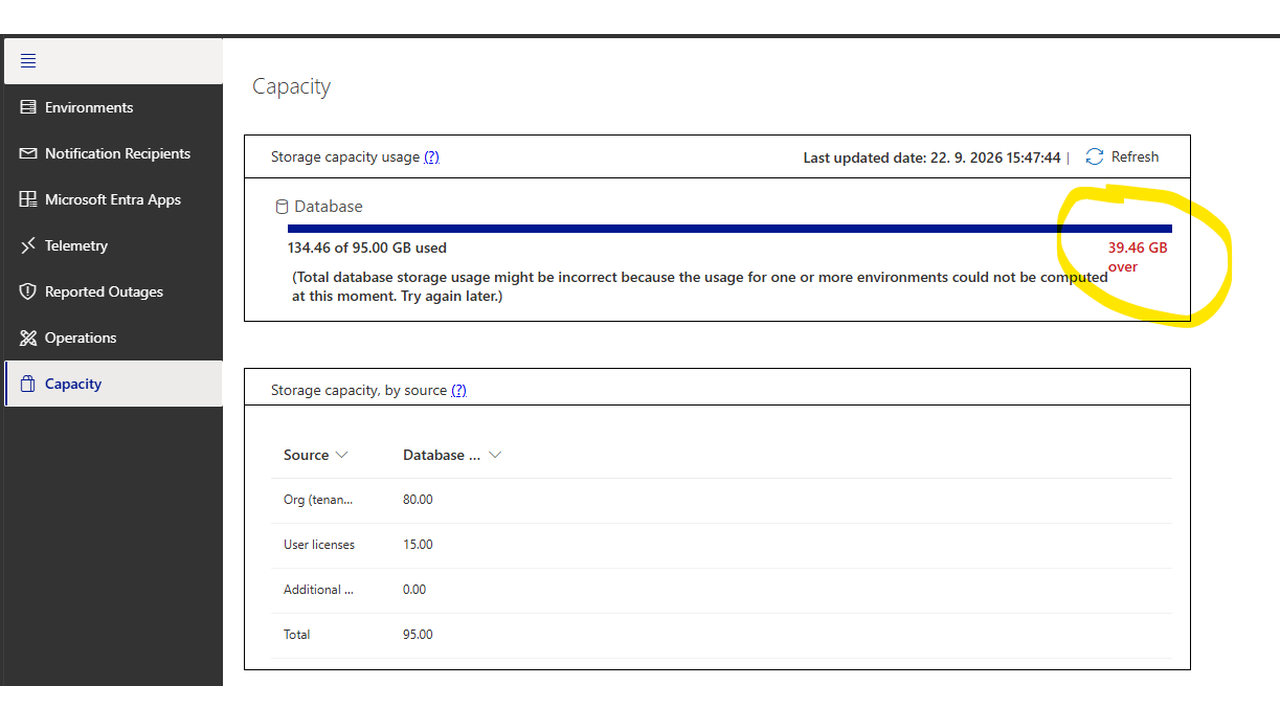
Database Cleaning Data vám ukáže, co přesně místo zabírá, a umožní staré nebo nepotřebné soubory bezpečně, dávkově a podle vámi zvolené doby uchování smazat.
Co aplikace umí
- Diagnostika Tenant Media — rozpad velikosti podle měsíce, uživatele, typu souboru a společnosti, včetně přehledu největších jednotlivých souborů.
- Vyčištění dat — řízené, dávkové smazání starých příloh dokladů a e-mailů, s vlastní dobou uchování pro každý typ dat.
- Tenant Media Cleanup — přímé smazání konkrétních položek Tenant Media, které diagnostika označila jako nadbytečné.
- Bezpečnostní pojistky — režim "jen spočítat" bez mazání, potvrzovací dialogy a ochrana produkčních dat proti nechtěnému smazání.
- Licence — bez licenčního klíče funguje aplikace ve zkušebním režimu.
Jak reporty najít
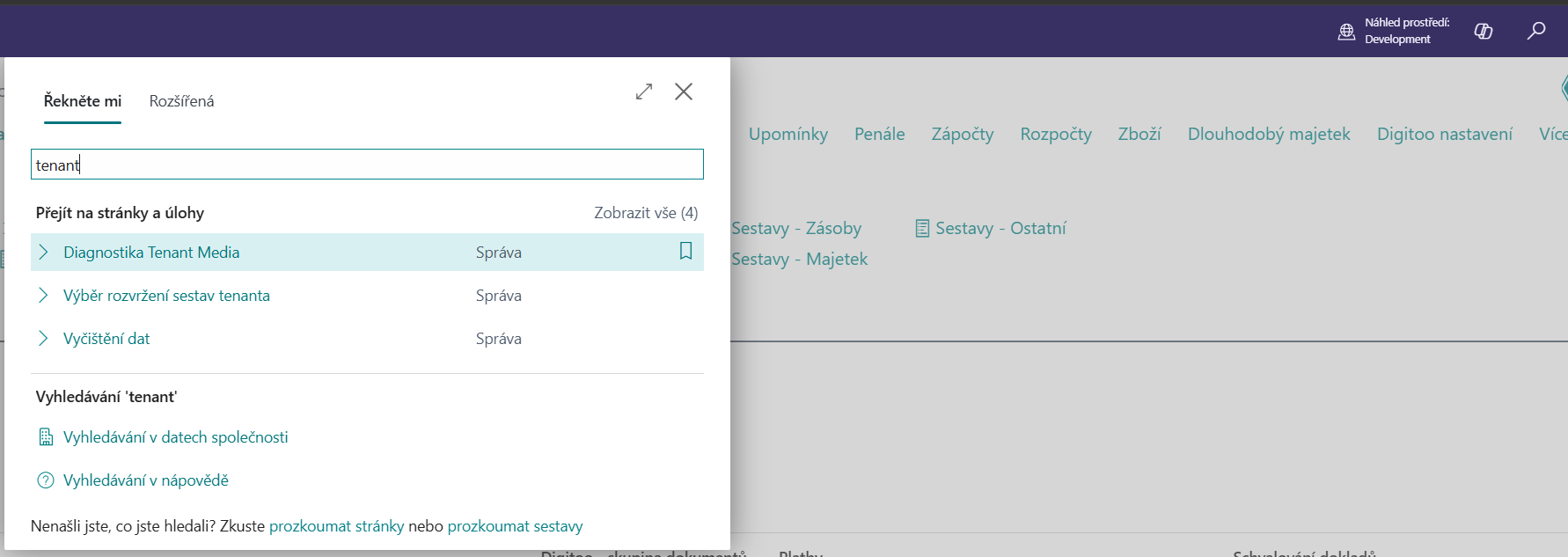
Všechny stránky a reporty aplikace najdete v menu Business Central pomocí funkce Řekněte mi (ikona lupy / klávesová zkratka Alt+G) — stačí napsat část názvu, např. "tenant" nebo "vyčištění".
1. Diagnostika Tenant Media
Než cokoliv smažete, doporučujeme spustit Diagnostika Tenant Media (Tenant Media Diagnostics). Report projde tabulku Tenant Media a zjistí, co v ní reálně zabírá místo — nejde jen o "ztracené" soubory, ale i o aktivně používaná, avšak neúměrně objemná data.
Při spuštění zvolíte rozsah, který se má analyzovat:
- Last 24 Hours / Last 7 Days / Last 60 Days — rychlý pohled na to, odkdy data přibývají, bez nutnosti čekat na kompletní analýzu (60 dní je výchozí volba).
- Full Table — projde úplně všechna data; u velkých tenantů může trvat déle, proto se před spuštěním zobrazí potvrzení.
- Custom Date — vlastní datum "od", pokud chcete zkontrolovat konkrétní období.
Výsledkem je CSV soubor, který se stáhne do vašeho počítače:
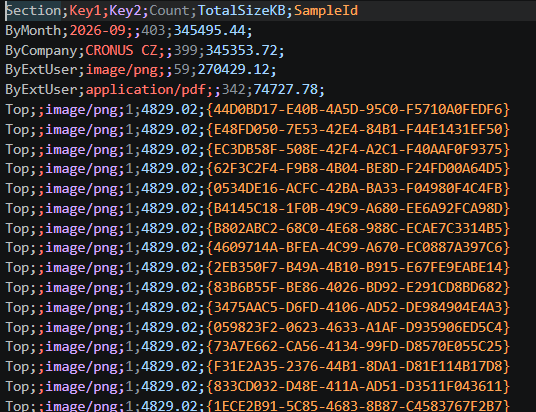
- rozpad velikosti podle měsíce, kdy soubory vznikly,
- rozpad podle typu souboru a uživatele, který jej nahrál — nejrychlejší způsob, jak najít konkrétní zdroj růstu,
- rozpad podle společnosti,
- seznam největších jednotlivých souborů s jejich ID.
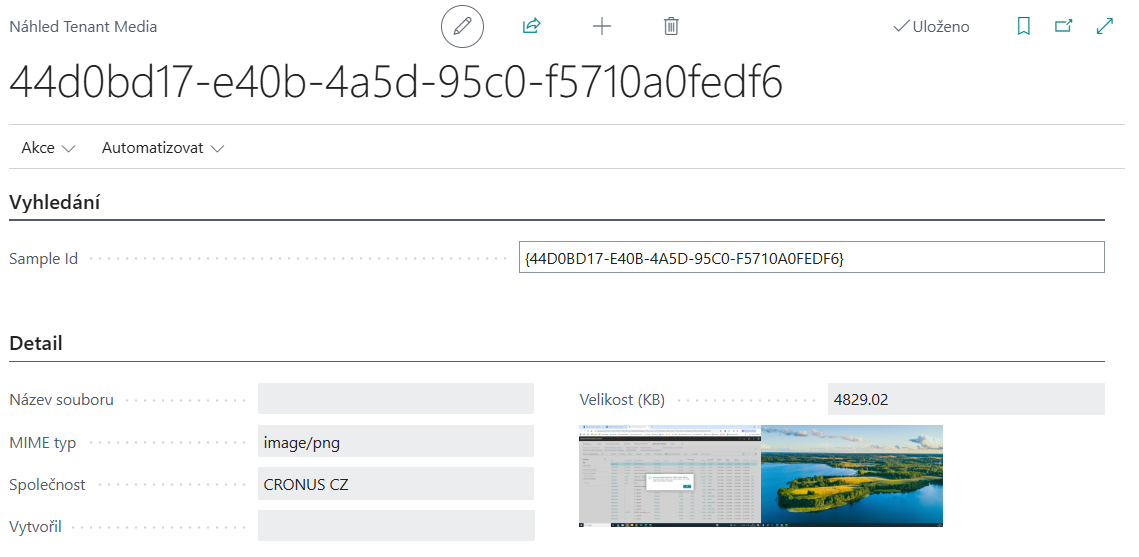
Pokud chcete zjistit, co konkrétní záznam z tohoto seznamu obsahuje (u řady záznamů chybí název souboru), použijte stránku Náhled Tenant Media (Tenant Media Preview) — stačí vložit ID záznamu ze sloupce Sample Id a stránka zobrazí obrázek nebo soubor i s jeho základními údaji.
Samotná diagnostika nic nemaže — jde čistě o přehled, na jehož základě se rozhodnete, co dál.
2. Vyčištění dat
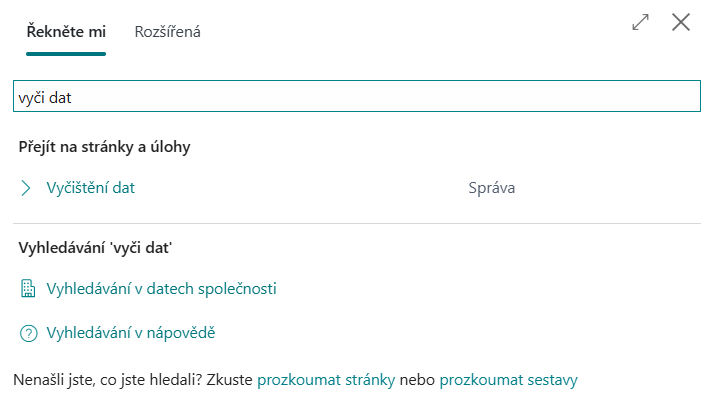
Report Vyčištění dat (Data Cleanup) najdete stejně přes Řekněte mi:
Slouží k pravidelnému, dávkovému promazávání starých záznamů. Stránka je rozdělená na sekce podle jednotlivých typů dat, u každé je přímo na obrazovce krátké vysvětlení, co obsahuje. U každé sekce zapnete mazání zaškrtnutím a zadáte, jak staré záznamy se mají smazat (např. 3 měsíce, 1 rok) — novější záznamy zůstanou vždy zachovány.
Document Attachment / Incoming Document Attachment — přílohy přidané k dokladům a kartám v celém Business Central.
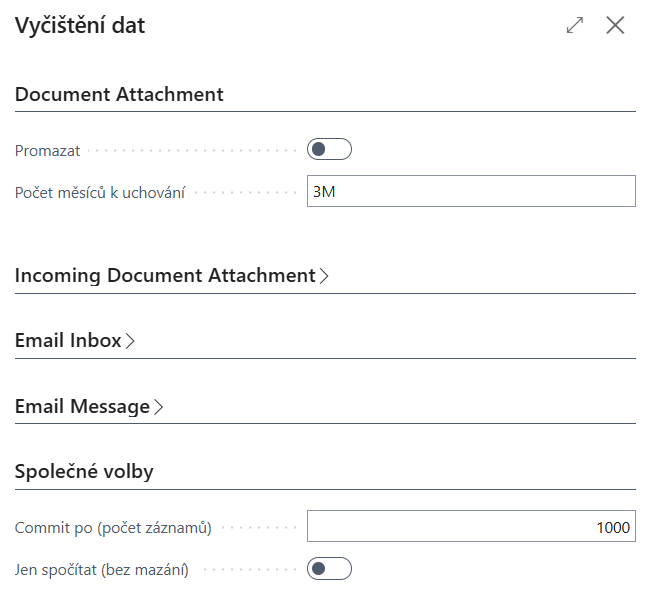

Email Inbox — skutečný seznam přijatých a odeslaných e-mailů v nativní funkci Email, včetně pošty stažené funkcemi jako Payables Agent.

Email Message — doplňkový úklid "osiřelých" e-mailů, které už na nic neodkazují; s promazáním Email Inbox se běžné e-maily i jejich přílohy uvolní automaticky, tahle volba jen dočistí zbytek.
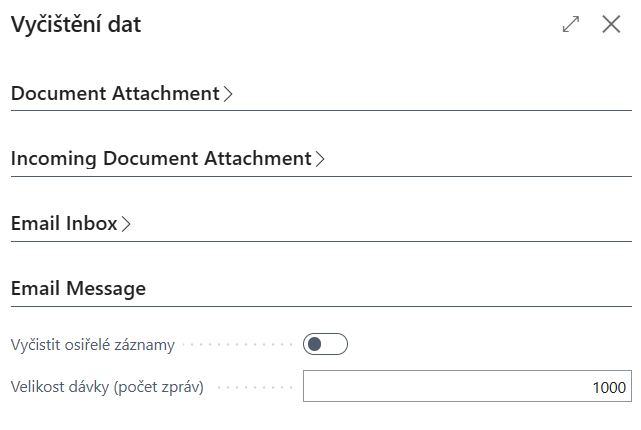
Kromě jednotlivých tabulek stránka obsahuje i společné volby:

Před ostrým mazáním doporučujeme zaškrtnout Jen spočítat — report pak jen ukáže, kolik záznamů by smazal, aniž by cokoliv skutečně odstranil. Po odškrtnutí této volby se před samotným mazáním vždy zobrazí potvrzovací dialog s přehledem počtů:

Po dokončení report zobrazí souhrn, kolik záznamů skutečně smazal:

Po smazání příloh se uvolněné místo v Tenant Media neprojeví hned — doporučujeme následně spustit standardní funkci Business Central Správa dat → Odstranit nepřipojená média, aby se skutečně uvolnila velikost databáze.
3. Tenant Media Cleanup
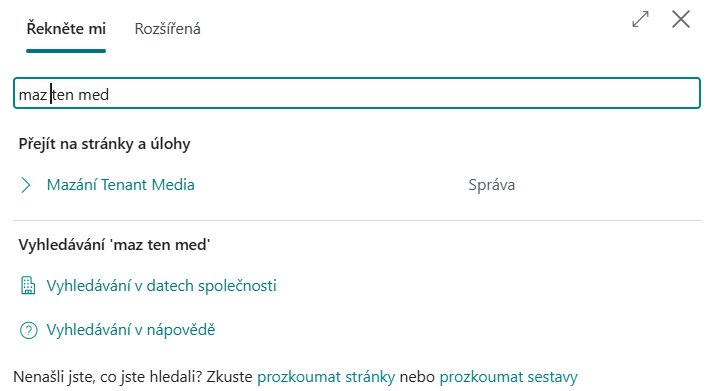
Report najdete opět přes Řekněte mi:
Tento report maže záznamy přímo z tabulky Tenant Media — bez ověřování, jestli na ně ještě něco odkazuje. Používejte jen pro záznamy, u kterých už víte (typicky z diagnostiky a náhledu), že jsou nadbytečné.
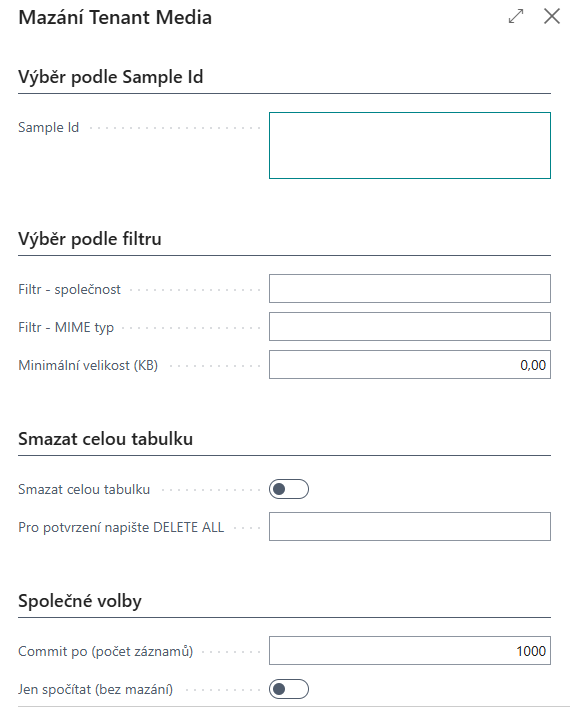
K výběru záznamů ke smazání máte tři možnosti (vyberte vždy jen jednu):
- Podle ID — vložíte konkrétní ID záznamů, např. zkopírovaná z výstupu diagnostiky.
- Podle filtru — společnost, typ souboru a/nebo minimální velikost; hodí se pro hromadné smazání, např. všech duplicitních obrázků nad určitou velikostí.
- Smazání celé tabulky — smaže úplně všechna data Tenant Media, napříč všemi společnostmi. Jde o nejzávažnější operaci v celé aplikaci, proto je potřeba do potvrzovacího pole přesně napsat
DELETE ALL.
I zde je k dispozici režim Jen spočítat pro náhled dopadu bez mazání a potvrzovací dialog před ostrým smazáním, který výslovně upozorňuje, že akci nelze vrátit zpět.
4. Ochrana produkčních dat
V produkčním prostředí (mimo Sandbox) je skutečné mazání dat ve výchozím stavu vypnuté — oba výše popsané reporty v produkci nesmažou nic, dokud to administrátor výslovně nepovolí na stránce nastavení aplikace:
- Do pole pro potvrzení je nutné přesně opsat text
CONFIRM PRODUCTION DELETION. - Teprve poté lze zaškrtnout volbu, že mazání produkčních dat administrátor povoluje — stránka jasně upozorňuje, že jde o trvalou a nevratnou ztrátu dat.
Dokud toto není povoleno, ostré mazání v produkci skončí srozumitelnou chybovou hláškou. Režim Jen spočítat tímto omezením není nijak dotčen a funguje vždy. Ve Sandbox prostředí toto omezení neplatí.
5. Automatizace
Oba reporty lze nastavit i jako pravidelně se opakující úlohu (frontu úloh) v Business Central, takže se čištění dat může provádět automaticky na pozadí bez nutnosti je spouštět ručně.
6. Licence
Licenční kód zadáte na stránce nastavení aplikace (najdete ji přes Řekněte mi pod názvem Database Cleaning Data Setup).
- Bez platného licenčního kódu aplikace funguje ve zkušebním režimu — z každé tabulky lze za jedno spuštění smazat maximálně 10 záznamů. Po doběhnutí se zobrazí informace, že šlo o omezené, zkušební mazání.
- S platným licenčním kódem platí limit podle vaší licence (typicky bez omezení). Před blížícím se koncem platnosti licence vás aplikace včas upozorní.
Podpora
V případě dotazů, zájmu o licenci nebo technické podpory nás kontaktujte na helpdesk(at)navitec.cz.
Database Cleaning Data — User Guide
Česká verze výše / Czech version above
Introduction
Business Central tenants tend to grow quietly over time — usually because of stored files: pictures on cards, attachments on documents, and increasingly emails (for example, mail downloaded by the Payables Agent while watching an inbox for incoming invoices). All of this ends up in the shared Tenant Media table and can push you past the database capacity limit shown on the Capacity page in the Business Central admin center.
Database Cleaning Data shows you exactly what's taking up the space, and lets you safely remove old or unneeded files in controlled batches, using a retention period you choose.
What the app does
- Tenant Media Diagnostics — a size breakdown by month, user, file type and company, plus a list of the largest individual files.
- Data Cleanup — controlled, batched deletion of old document attachments and emails, with its own retention period for each data type.
- Tenant Media Cleanup — direct deletion of specific Tenant Media records that diagnostics has identified as redundant.
- Safety features — a count-only preview mode, confirmation dialogs, and protection against accidental deletion of production data.
- Licensing — the app runs in a trial mode when no license key is entered.
Finding the reports
All of the app's pages and reports can be found in the Business Central menu via Tell me (the magnifying-glass icon, or Alt+G) — just type part of the name, e.g. "tenant" or "cleanup". (Screenshots in this guide show the Czech menu labels; the English UI shows the equivalent English names.)
1. Tenant Media Diagnostics
Before deleting anything, we recommend running Tenant Media Diagnostics. It scans the Tenant Media table to find out what is actually taking up space there — not just "orphaned" files, but also actively used data that has simply grown too large.
When you run it, you choose a scope:
- Last 24 Hours / Last 7 Days / Last 60 Days — a quick way to see how recently the data has been growing, without waiting for a full scan (60 days is the default).
- Full Table — scans everything; on a large tenant this can take a while, so you'll be asked to confirm before it starts.
- Custom Date — a specific "from" date, if you want to check a particular period.
The result is a CSV file, downloaded to your computer:
- a size breakdown by the month the files were created,
- a breakdown by file type and the user who uploaded it — the fastest way to spot a specific source of growth,
- a breakdown by company,
- a list of the largest individual files, with their record ID.
If you want to see what a specific record from that list actually contains (many records have no file name shown), use the Tenant Media Preview page — enter the record's ID from the Sample Id column and the page will display the image or file along with its basic details.
Diagnostics never deletes anything — it's purely a report to help you decide what to do next.
2. Data Cleanup
Find the Data Cleanup report the same way, via Tell me:
It handles regular, batched deletion of old records. The page is organized into sections by data type, each with a short on-screen explanation of what it contains. For each section, tick the box to enable deletion and enter how old records must be before they're removed (e.g. 3 months, 1 year) — newer records are always kept.
Document Attachment / Incoming Document Attachment — attachments added to documents and cards throughout Business Central.
Email Inbox — the actual list of received and sent emails in the native Email feature, including mail downloaded by features such as the Payables Agent.
Email Message — a supplementary cleanup of "orphaned" emails that nothing refers to anymore; deleting Email Inbox records already releases the underlying emails and their attachments automatically, so this option just tidies up any leftovers.
Besides the individual tables, the page also has shared options:
Before deleting for real, we recommend ticking Count Only — the report then just shows how many records would be deleted, without removing anything. Once that's unticked, a confirmation dialog with the record counts always appears before deletion actually happens:
Once finished, the report shows a summary of how many records were actually deleted:
Freed space in Tenant Media doesn't shrink the database immediately after attachments are deleted — afterwards, run Business Central's standard Data Administration → Remove Detached Media function so the freed space is actually reclaimed.
3. Tenant Media Cleanup
Find this report the same way, via Tell me:
This report deletes records directly from the Tenant Media table, without checking whether anything still references them. Only use it for records you already know (typically from diagnostics and the preview page) are redundant.
You choose one of three ways to select the records to delete:
- By ID — enter specific record IDs, e.g. copied from the diagnostics output.
- By filter — company, file type and/or minimum size; useful for bulk deletion, e.g. all duplicate images above a certain size.
- Delete the entire table — removes all Tenant Media data, across every company. This is the most drastic action in the whole app, so you must type
DELETE ALLexactly into the confirmation field.
A Count Only preview mode is available here too, along with a confirmation dialog before real deletion that explicitly warns the action cannot be undone.
4. Protecting production data
In a production environment (as opposed to a Sandbox), real deletion is disabled by default — neither report will delete anything in production until an administrator explicitly enables it on the app's setup page:
- The confirmation field must contain the exact text
CONFIRM PRODUCTION DELETION. - Only then can the administrator tick the box confirming that production deletion is allowed — the page clearly warns that this causes permanent, irreversible data loss.
Until this is enabled, any attempt at real deletion in production stops with a clear error message. The Count Only preview mode is never affected by this and always works. This restriction does not apply in a Sandbox environment.
5. Automation
Both reports can also be set up as a recurring job queue entry in Business Central, so cleanup can run automatically in the background without anyone having to start it manually.
6. Licensing
Enter your license code on the app's setup page (find it via Tell me under Database Cleaning Data Setup).
- Without a valid license code, the app runs in trial mode — at most 10 records per table can be deleted per run. A message after each run confirms this was a limited, trial cleanup.
- With a valid license code, the limit follows your license (typically unlimited). You'll be warned in good time before your license is due to expire.
Support
For questions, licensing, or technical support, contact us at helpdesk(at)navitec.cz.